---
title: Configuring Ticketing Settings
description: Before you create tickets or promo codes for your event, it is important to configure the ticketing settings to ensure proper payment processing. Start by clicking on Ticketing on the left sidebar of
---
[Skip to content](https://support.b2match.com/configuring-ticketing-settings#main-content)
[](https://www.b2match.com/)
- [Log in](https://admin.b2match.com/cp/log-in)
Open main navigation
Close main navigation
- [Log in](https://admin.b2match.com/cp/log-in)
- [Contact us](http://www.b2match.com/contact-us)
[Contact us](http://www.b2match.com/contact-us)
How can we help you?
- There are no suggestions because the search field is empty.
1. [Help Center](https://support.b2match.com/?hsLang=en)
2. [Organizer Guide](https://support.b2match.com/organizer-guide?hsLang=en)
3. [Ticketing](https://support.b2match.com/organizer-guide?hsLang=en#ticketing)
# Configuring Ticketing Settings
Before you [**create tickets**](https://support.b2match.com/en/creating-tickets?hsLang=en) or [**promo codes**](https://support.b2match.com/en/creating-promo-codes?hsLang=en) for your event, it is important to configure the ticketing settings to ensure proper payment processing.
### How can I configure ticketing settings?
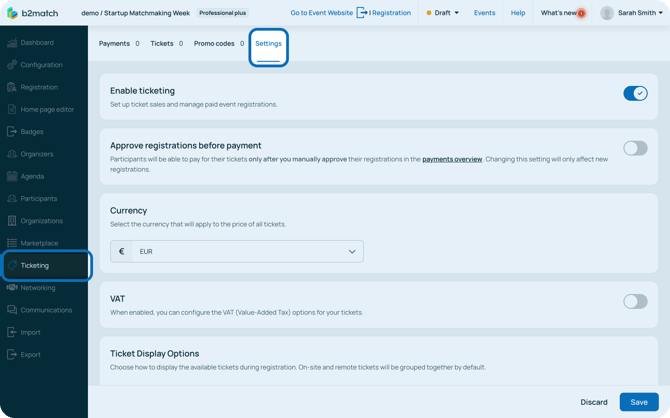
Start by clicking on ***Ticketing*** on the **left sidebar** of the Organizer’s Tool.
Then, navigate to the **Settings tab**.
#### Enable ticketing
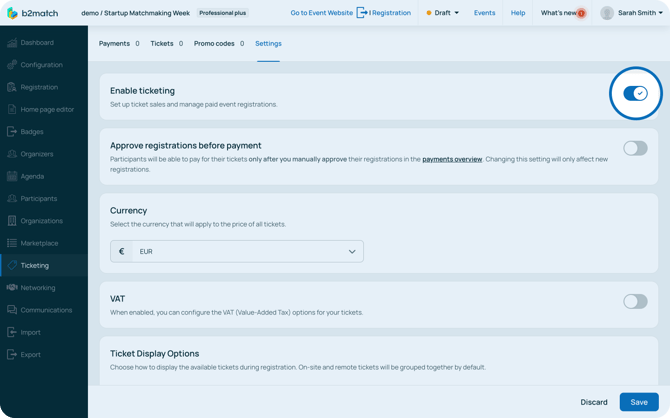
Before you start configuring the ticketing settings, you first need to enable ticketing for your event.
To do this, simply click the ***toggle switch***.
#### Approve registrations before payment
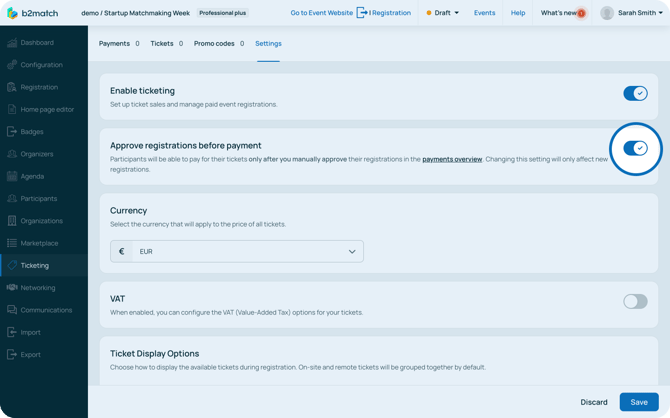
You can choose whether the participants pay for their tickets immediately as they register, or only after you manually approve their registrations.
That way the participants will skip the payment step during registration, and will need to wait for you to confirm their registration. You can do this in the **Payments tab**.
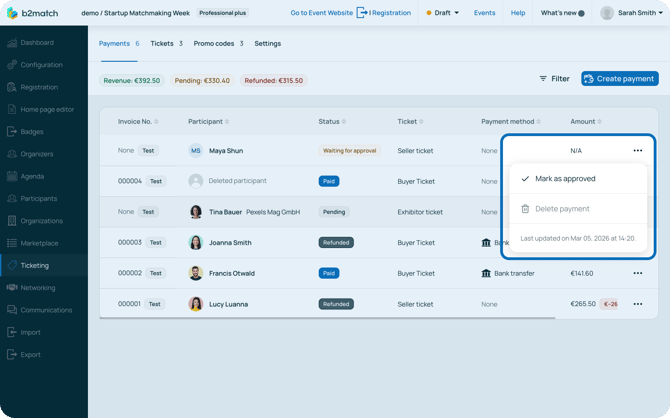
You will notice that the participants status will be "Waiting for approval". You can quickly approve their registration by clicking on the 3 dots and selecting **Mark as approved**.
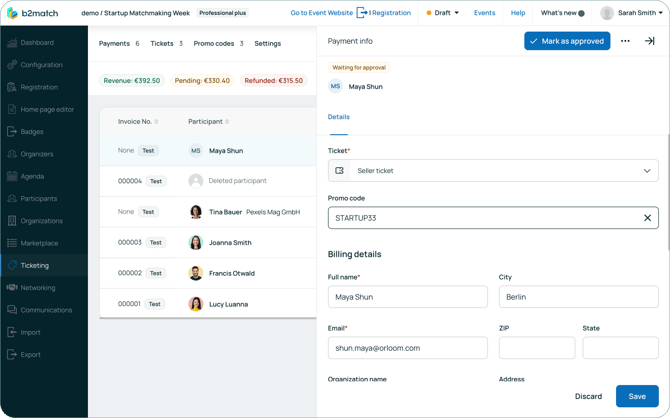
However, if you wish to take a look at their billing details and payment summary, click on the payment to open the **Payment info** side panel. Here, you can approve the registration by clicking on the ***Mark as approved button***.
After you approve their registration, the participant will receive a confirmation email prompting them to finalize the payment.
If you wish to configure that participants pay for their ticket **after** you manually approve them, click the ***toggle switch*** in the **Settings tab**.
**
#### Currency
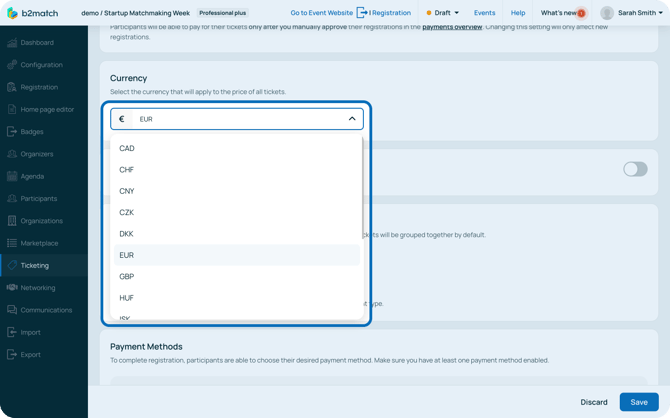
In the **Currency section**, choose the currency that will apply to the price of all tickets from the **drop-down menu**.
#### VAT
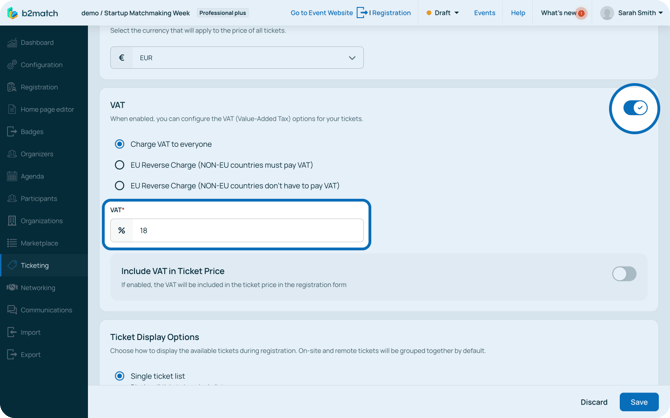
In the **VAT section**, configure the Value-Added Tax (VAT) options for your tickets. Click the ***toggle switch*** to enable VAT.
This will open further VAT configuration options. You can choose between
- Charge VAT to everyone
- EU Reverse Charge (participants from the non-EU countries will be obligated to pay VAT)
- Eu Reverse Charge (participants from NON-EU countries don’t have to pay VAT)
Then, enter the VAT value in percentages in the **VAT field**.
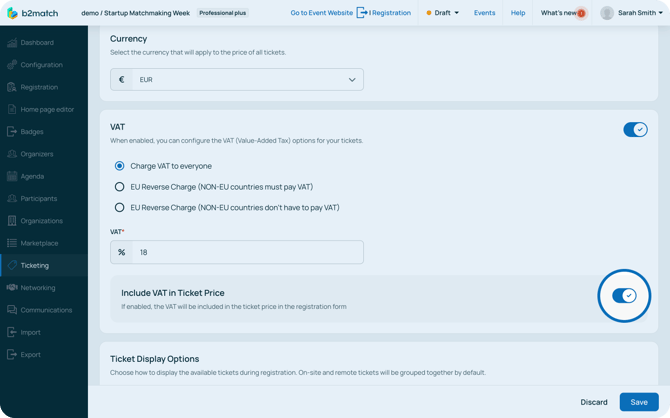
If you wish to include VAT in the ticket price during registration, just click the ***toggle switch***.
#### Ticket Display Options
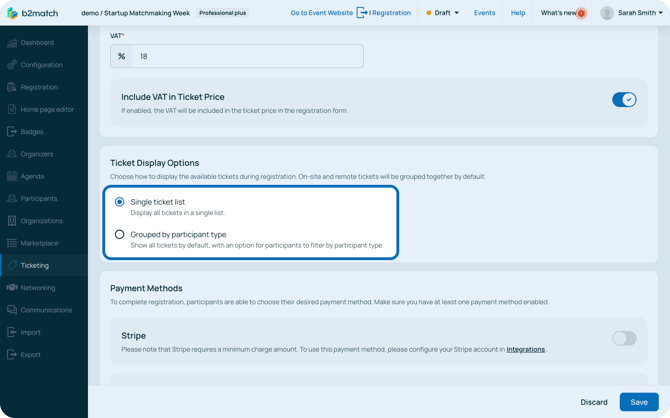
Since tickets are connected to participant types and can be used to limit session access, you can choose to display your tickets either in a **single list** or **grouped by participant type** for more complex ticketing setups.
Grouping tickets by participant type will show all tickets, but attendees can filter them by participant type.
Choose the preferred option by ***clicking*** on it. Keep in mind that the changes will affect only new registrations.
#### Payment Methods
In the **Payment Methods section**, configure the payment method participants will use to pay for tickets.
Note: Keep in mind that at least one payment method should be enabled.
Currently you can choose between **Stripe** and **Payment via Invoice**. To enable a payment method, click the ***toggle switch*** next to the preferred method.
#### Payment via Stripe
If you enable payment via Stripe, make sure you connect your Stripe account with the platform. To connect your Stripe account with the platform, first click on ***Configuration*** from the left sidebar.
Note: Keep in mind that only the event owner can add an integration. You can see who is marked as the event owner on the Organizers page by clicking on Organizers in the left sidebar of the Organizer's tool.
Then, from the **Event Settings sectio**n, select ***Integrations***.
This will open the **Available integrations page**.
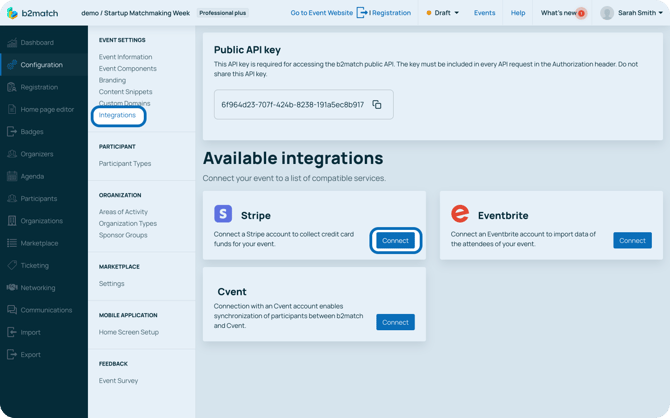
To connect your Stripe account with the b2match platform, click on the ***Connect button***. This will redirect you to Stripe’s website, where you should log in using your Stripe credentials.
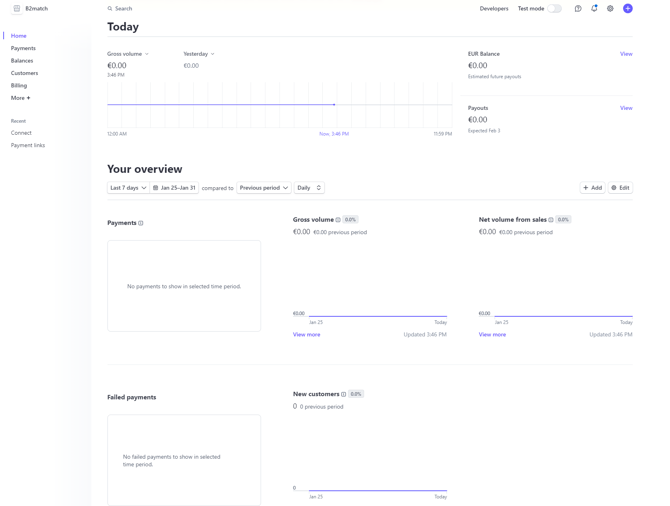
Once logged in, the Stripe dashboard will display the total revenue generated from sold tickets for your event.
Note: Stripe offers several account types when creating a profile there. For integrating Stripe with your b2match event, it’s okay to choose the Standard account type.
It's important to note that Stripe charges fees for each transaction processed.
For standard European Economic Area cards, including Visa, Maestro, Mastercard, Amex, Apple Pay, Google Pay, and JCB, the fee is 1.5% + €0.25. Premium European Economic Area cards carry a fee of 1.9% + €0.25.
International card payments incur a fee of 2.5% + €0.25 for UK cards (with an additional 1% if currency conversion is necessary) and 3.25% + €0.25 for international cards (with an extra 1% if currency conversion is required).
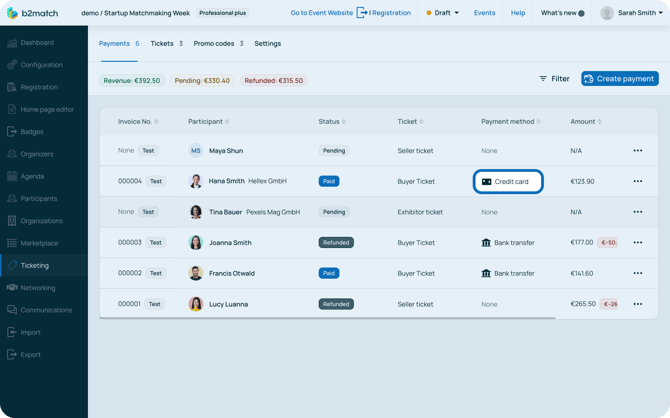
Successful card payments through Stripe will be automatically shown on the **Payments tab** in the b2match platform, with the Payment method indicated as **Credit card**.
#### Payment via Invoice
If you enable Payment via Invoice, this will open the **Bank Account Details**.
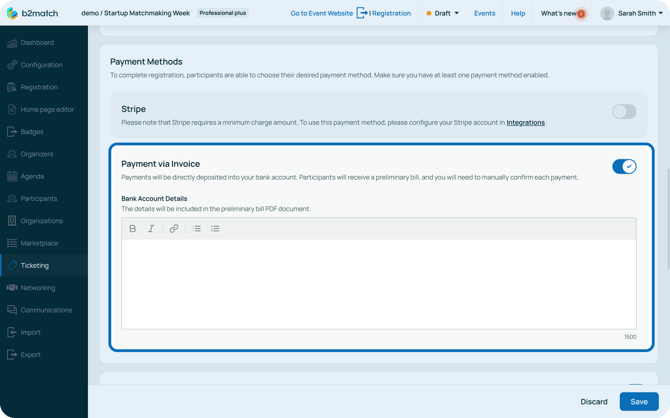
Here, enter your bank account details. The details you include in this field will be included in the preliminary bill PDF document.
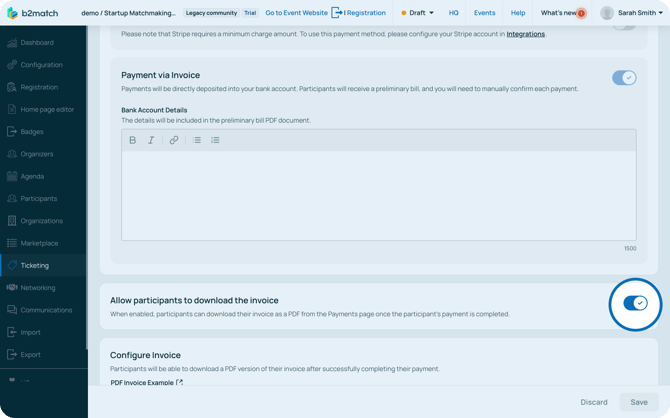
If you wish to allow participants to download the invoice once they complete the payment, simply click the ***toggle switch*** next to **Allow participants to download the invoice**.
#### Configure Invoice
In the **Configure Invoice section**, you can further edit the invoice.
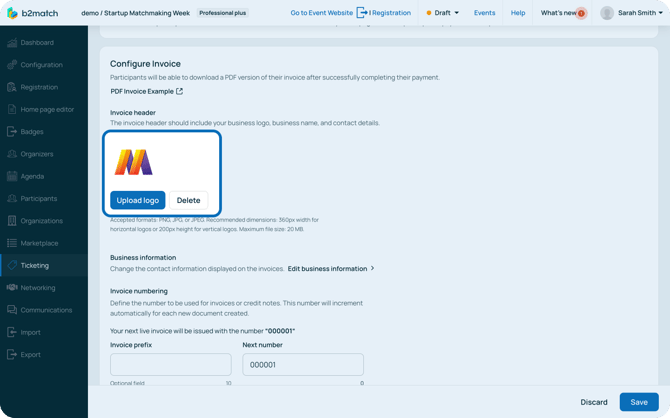
In the invoice header, include your business logo, name, and contact details.
Click on the ***Upload logo button*** and choose the png, jpg, or jpeg file you wish to include here.
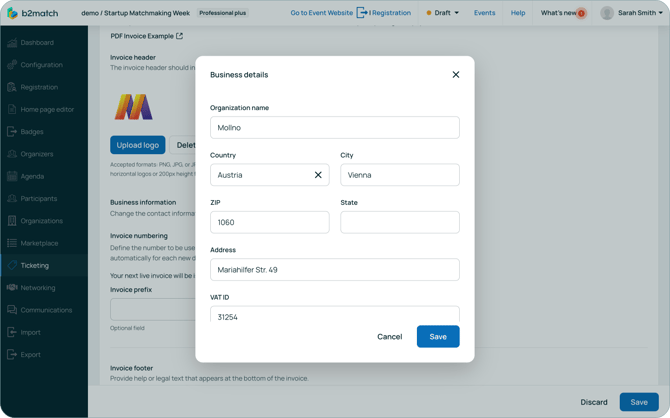
Click on ***Edit business information*** to open the **Business details modal**.
Here, type in your Organization’s name, Country, City, ZIP, State, Address, VAT ID, Phone number, Support email and Website URL. After you entered all the details, click on ***Save***.
In the Invoice numbering section you can define the invoice prefix as well as the number used for invoices and credit notes. To configure this, just add the values in **Invoice prefix** and **Next number field**.
In the **Invoice footer field**, provide help or a legal text that will appear at the bottom of the invoice.
Tip: If you wish to preview how the invoice looks like, click on ***PDF Invoice Example***.
After you configured all ticketing and payment settings, click on ***Save***.
*If you didn't find an answer to your questions, please get in touch with the Support Team* [***here***](https://www.b2match.com/contact-us/organizer-support?utm_source=knowledgebase&utm_medium=link&utm_content=knowledgebase_article)*.*
- [Organizer Guide](https://support.b2match.com/organizer-guide?hsLang=en#main-content)
- [Your Organizer Account](https://support.b2match.com/organizer-guide?hsLang=en#your-organizer-account)
- [Managing Organizers](https://support.b2match.com/organizer-guide?hsLang=en#managing-organizers)
- [Workspace Management](https://support.b2match.com/organizer-guide?hsLang=en#workspace-management)
- [Event Management](https://support.b2match.com/organizer-guide?hsLang=en#event-management)
- [Home Page Editor](https://support.b2match.com/organizer-guide?hsLang=en#home-page-editor)
- [Event Settings](https://support.b2match.com/organizer-guide?hsLang=en#event-settings)
- [Event Components](https://support.b2match.com/organizer-guide?hsLang=en#event-components)
- [Branding](https://support.b2match.com/organizer-guide?hsLang=en#branding)
- [Registration Settings](https://support.b2match.com/organizer-guide?hsLang=en#registration-settings)
- [Custom Questions](https://support.b2match.com/organizer-guide?hsLang=en#custom-questions)
- [Participant Types](https://support.b2match.com/organizer-guide?hsLang=en#participant-types)
- [Ticketing](https://support.b2match.com/organizer-guide?hsLang=en#ticketing)
- [Agenda: Sessions](https://support.b2match.com/organizer-guide?hsLang=en#agenda-sessions)
- [Agenda: Session Locations](https://support.b2match.com/organizer-guide?hsLang=en#agenda-session-locations)
- [Agenda: Tracks](https://support.b2match.com/organizer-guide?hsLang=en#agenda-tracks)
- [Agenda: Topics](https://support.b2match.com/organizer-guide?hsLang=en#agenda-topics)
- [Agenda: Live Streams](https://support.b2match.com/organizer-guide?hsLang=en#agenda-live-streams)
- [Participants: Managing participants](https://support.b2match.com/organizer-guide?hsLang=en#participants-managing-participants)
- [Participants: Participant Types](https://support.b2match.com/organizer-guide?hsLang=en#participants-participant-types)
- [Participants: Speakers](https://support.b2match.com/organizer-guide?hsLang=en#participants-speakers)
- [Organizations: Managing Organizations](https://support.b2match.com/organizer-guide?hsLang=en#organizations-managing-organizations)
- [Organizations: Organization Types](https://support.b2match.com/organizer-guide?hsLang=en#organizations-organization-types)
- [Organizations: Areas of Activity](https://support.b2match.com/organizer-guide?hsLang=en#organizations-areas-of-activity)
- [Organizations: Sponsors](https://support.b2match.com/organizer-guide?hsLang=en#organizations-sponsors)
- [Meetings](https://support.b2match.com/organizer-guide?hsLang=en#meetings)
- [Meetings: Settings](https://support.b2match.com/organizer-guide?hsLang=en#meetings-settings)
- [Meetings: Meeting Blocks](https://support.b2match.com/organizer-guide?hsLang=en#meetings-meeting-blocks)
- [Meetings: Meeting Locations](https://support.b2match.com/organizer-guide?hsLang=en#meetings-meeting-locations)
- [Marketplace](https://support.b2match.com/organizer-guide?hsLang=en#marketplace)
- [Emails & Notifications: Outbox Emails](https://support.b2match.com/organizer-guide?hsLang=en#emails-notifications-outbox-emails)
- [Emails & Notifications: Automated Email Notifications](https://support.b2match.com/organizer-guide?hsLang=en#emails-notifications-automated-email-notifications)
- [Emails & Notifications: Announcements](https://support.b2match.com/organizer-guide?hsLang=en#emails-notifications-announcements)
- [Advanced Search](https://support.b2match.com/organizer-guide?hsLang=en#advanced-search)
- [Data Import & Export](https://support.b2match.com/organizer-guide?hsLang=en#data-import-export)
- [In-Person Participant Management: Badges](https://support.b2match.com/organizer-guide?hsLang=en#in-person-participant-management-badges)
- [In-Person Participant Management: Check-In App](https://support.b2match.com/organizer-guide?hsLang=en#in-person-participant-management-check-in-app)
- [In-Person Participant Management: On-Site Support](https://support.b2match.com/organizer-guide?hsLang=en#in-person-participant-management-on-site-support)
- [Mobile Event App](https://support.b2match.com/organizer-guide?hsLang=en#mobile-event-app)
- [Community Management Platform](https://support.b2match.com/organizer-guide?hsLang=en#community-management-platform)
- [Registration Form](https://support.b2match.com/organizer-guide?hsLang=en#registration-form)
- [Participant Guide](https://support.b2match.com/participant-guide?hsLang=en#main-content)
- [Getting Started](https://support.b2match.com/participant-guide?hsLang=en#getting-started)
- [Account Settings](https://support.b2match.com/participant-guide?hsLang=en#account-settings)
- [Event Settings](https://support.b2match.com/participant-guide?hsLang=en#event-settings)
- [Profile](https://support.b2match.com/participant-guide?hsLang=en#profile)
- [Agenda](https://support.b2match.com/participant-guide?hsLang=en#agenda)
- [Networking: Meetings](https://support.b2match.com/participant-guide?hsLang=en#networking-meetings)
- [Networking: Conversations](https://support.b2match.com/participant-guide?hsLang=en#networking-conversations)
- [Marketplace](https://support.b2match.com/participant-guide?hsLang=en#marketplace)
- [Feedback](https://support.b2match.com/participant-guide?hsLang=en#feedback)
[](https://www.b2match.com)
Need more help? Contact us at support@b2match.com
[mailto:support@b2match.com](mailto:support@b2match.com)
Copyright © 2025, b2match GmbH