
Who doesn’t love discounts and promo codes? Now, you can create promo codes for your tickets and so attract more participants to your event.
How can I create promo codes?
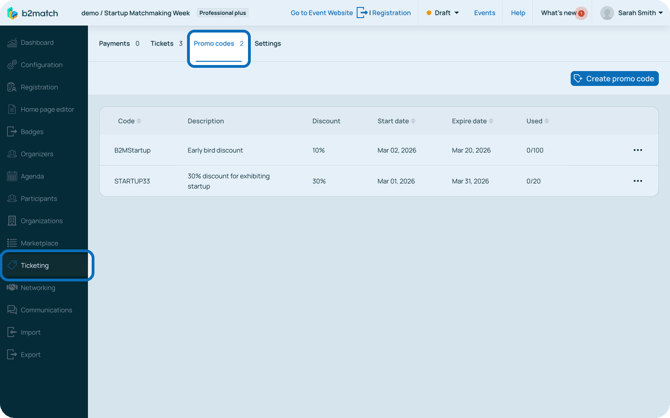
First, click on Ticketing on the left sidebar of the Organizer’s Tool.
Next, navigate to the Promo Codes tab where you can see your existing promo codes and create new ones.
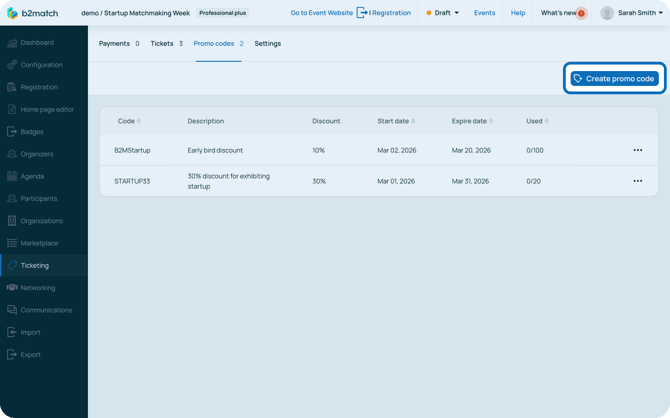
To create a new promo code, click on the Create promo code.
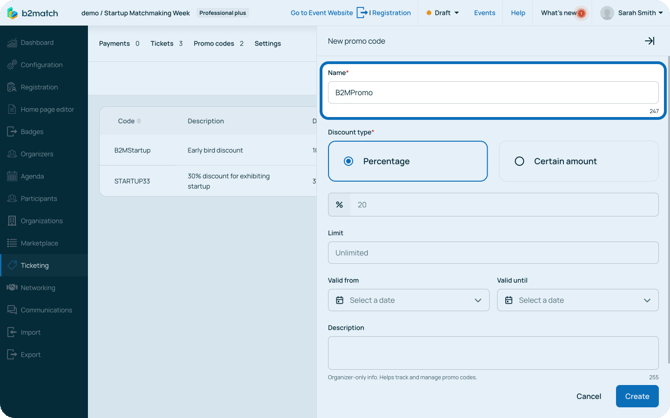
This will open the New promo code sidebar.
First, type in the promo code’s name in the Name field.
Then, select the Discount type. You can choose between percentage or a certain amount.
Then, enter the discount’s value in the field below.
If you want to make your promo code exclusive, set a limit in the Limit field. Leaving this field empty means there is no limit.
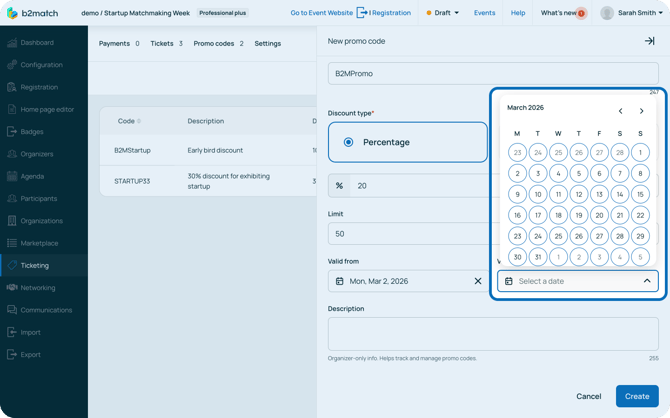
Next, configure the time span during which the promo code will be valid.
To help you track and manage promo codes, you can add a description to them. Descriptions are only visible in the Organizer's tool.
You can write a promo code description of up to 255 characters in the Description field.
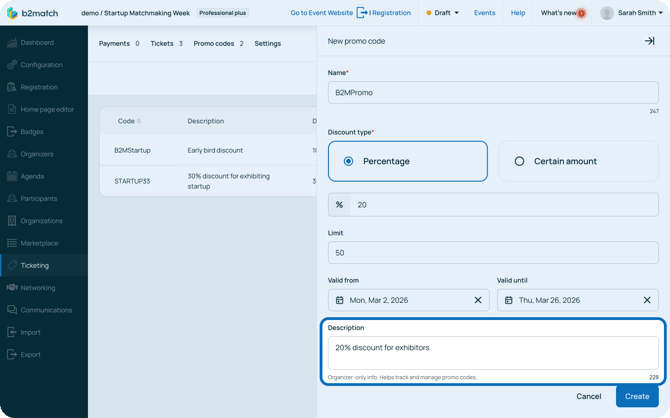
After you have entered all the details, click on the Create button.
If you didn't find an answer to your questions, please get in touch with the Support Team here.