---
title: Exploring & Configuring Components
description: Once you've added event components to the navigation bar on your event website, it's important to properly configure them. There is a variety of event components you can add to the navigation bar.
---
[Skip to content](https://support.b2match.com/exploring-configuring-components#main-content)
[](https://www.b2match.com/)
- [Log in](https://admin.b2match.com/cp/log-in)
Open main navigation
Close main navigation
- [Log in](https://admin.b2match.com/cp/log-in)
- [Contact us](http://www.b2match.com/contact-us)
[Contact us](http://www.b2match.com/contact-us)
How can we help you?
- There are no suggestions because the search field is empty.
1. [Help Center](https://support.b2match.com/?hsLang=en)
2. [Organizer Guide](https://support.b2match.com/organizer-guide?hsLang=en)
3. [Event Components](https://support.b2match.com/organizer-guide?hsLang=en#event-components)
# Exploring & Configuring Components
### Contents
| 1. [How can I configure components?](https://support.b2match.com/exploring-configuring-components#how-can-i-configure-components) 1. [Website](https://support.b2match.com/exploring-configuring-components#website) 2. [Participants](https://support.b2match.com/exploring-configuring-components#participants) 3. [Companies](https://support.b2match.com/exploring-configuring-components#companies) 4. [Marketplace](https://support.b2match.com/exploring-configuring-components#marketplace) 5. [Agenda](https://support.b2match.com/exploring-configuring-components#agenda) 6. [Speakers](https://support.b2match.com/exploring-configuring-components#speakers) 7. [Sponsors](https://support.b2match.com/exploring-configuring-components#sponsors) 8. [Organizers](https://support.b2match.com/exploring-configuring-components#organizers) 9. [External Link](https://support.b2match.com/exploring-configuring-components#external-link) 10. [Walls.io](https://support.b2match.com/exploring-configuring-components#walls.io) 11. [Drop-down Menu](https://support.b2match.com/exploring-configuring-components#drop-down) 2. [How can I edit event components?](https://support.b2match.com/exploring-configuring-components#edit-event-components) 3. [How can I reorder event components?](https://support.b2match.com/exploring-configuring-components#reorder-event-components) |
| --- |
Once you've [**added event components**](https://support.b2match.com/en/adding-event-components?hsLang=en) to the navigation bar on your event website, it's important to properly configure them.
### How can I configure event components?
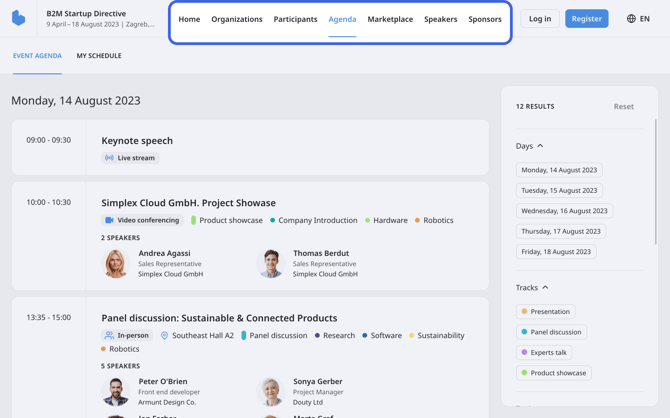
There is a variety of event components you can add to the [**navigation bar**](https://support.b2match.com/en/understanding-event-components?hsLang=en).
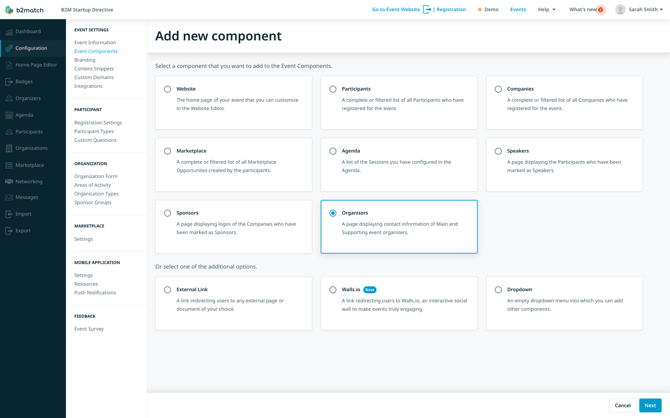
#### Website
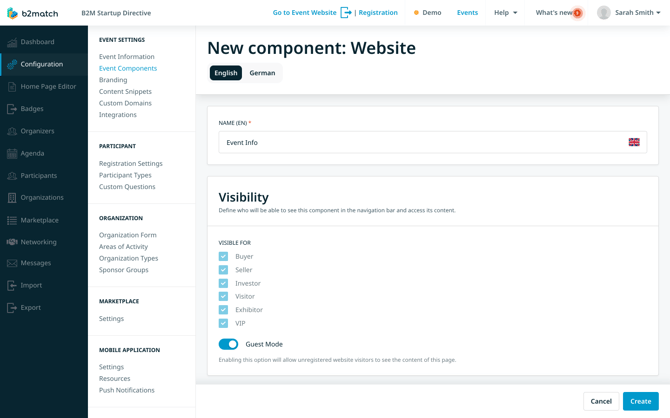
The **Website component** redirects users to the event's home page.
Enter the desired name for the component in the **Name field**.
Then, define the component's **visibility settings**. Click on the ***Guest mode toggle switch*** to allow unregistered website visitors to view the page's contents.
If you don't want unregistered website visitors to view this page, select specific participant types that can see the component by ***ticking the boxes***.
#### Participants
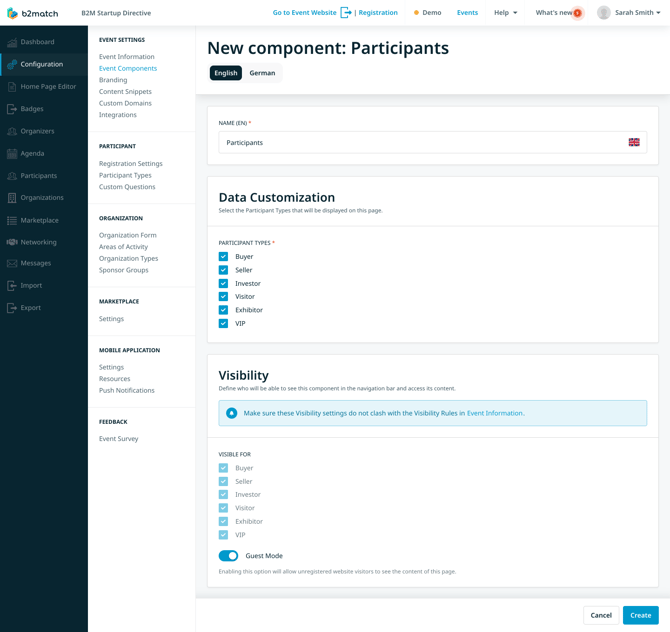
The **Participants component** redirects users to the [**participant list**](https://support.b2match.com/en/understanding-b2match-participants?hsLang=en).
Enter the name you want to be displayed on the navigation bar for this component.
In the **Page Customization section**, choose from three views to customize the participants list:
- **Participants view only** - displays only the list of participants
- **Organization view only** - displays participants grouped by their organizations
- **Participants & Organization view** - allows participants to switch between the participants and organization views on the participant list
In the **Data Customization section**, choose the participant types you wish to display on the page. Only participants with these selected types will be shown.
Then, set the **visibility settings**. Enable the ***Guest Mode toggle switch*** to allow every website visitor to view this component.
Alternatively, select **specific participant types** whose participants should see the component.
#### Companies
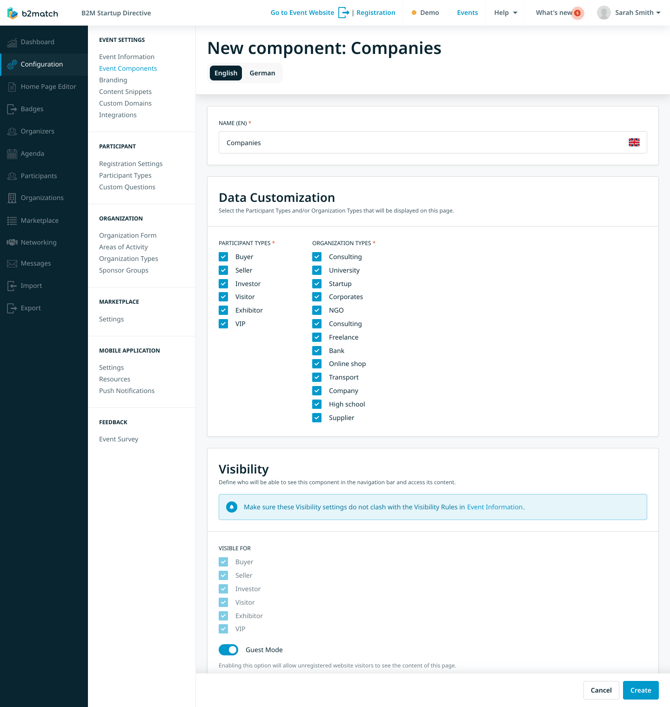
The **Companies component** redirects users to the [**organizations list**](https://support.b2match.com/en/understanding-b2match-organizations?hsLang=en).
Enter the desired name for the component in the **Name field**.
In the **Data Customization section**, select the participant types and/or organization types you wish to display on the page. Only participants and organizations with these selected types will be shown.
Then, configure the **visibility settings** for this component.
#### Marketplace
The **Marketplace component** redirects users to the marketplace page.
In the **Name field**, type the name of the component.
In the **Data Customization section**, select the participant types whose marketplace opportunities you wish to display on this page.
In the **Visibility section**, define who can see this component on the navigation bar.
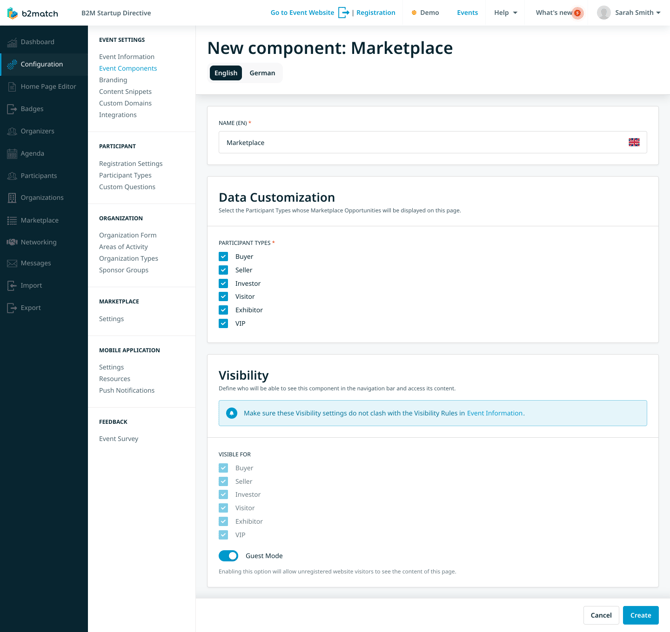
Tip: Before configuring the visibility of the Participants, Companies, and Marketplace components, ensure that these settings do not conflict with the [**visibility rules**](https://support.b2match.com/en/configuring-visibility-rules?hsLang=en) you have already set for the event.
#### Agenda
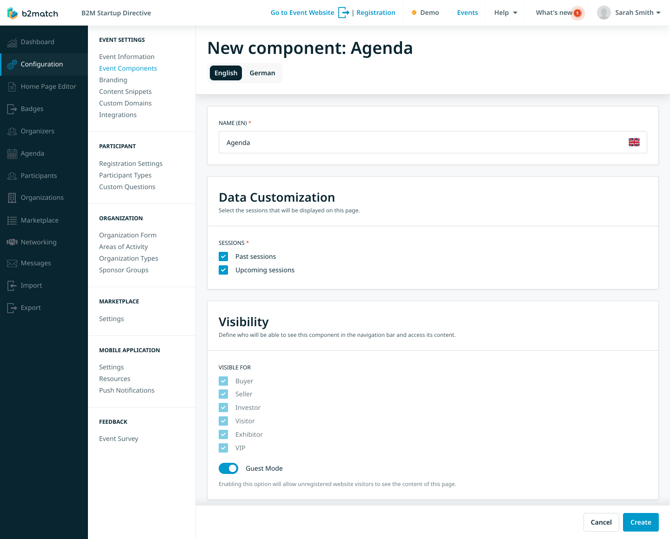
The **Agenda component** redirects users to the [**Agenda**](https://support.b2match.com/en/understanding-the-b2match-agenda?hsLang=en)page.
Enter the desired name for the component in the **Name field**.
Next, in the **Data Customization section**, select whether to display past sessions or upcoming sessions on this page.
After that, define the component's visibility settings in the **Visibility section**.
#### Speakers
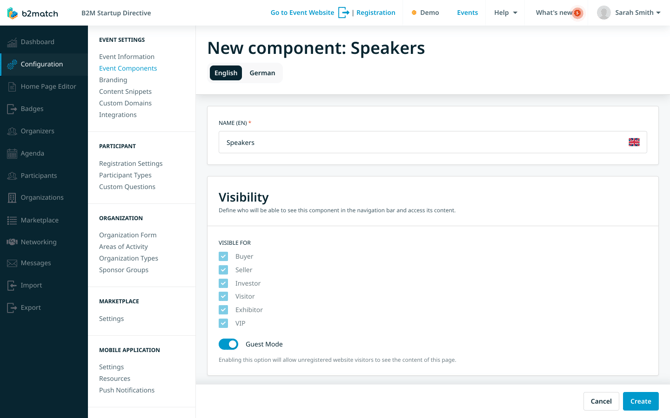
The **Speakers component** redirects users to the [**Speakers page**](https://support.b2match.com/en/understanding-b2match-speakers?hsLang=en).
Enter the name you want to be displayed on the navigation bar in the **Name field**.
After that, configure the component's visibility in the **Visibility section**.
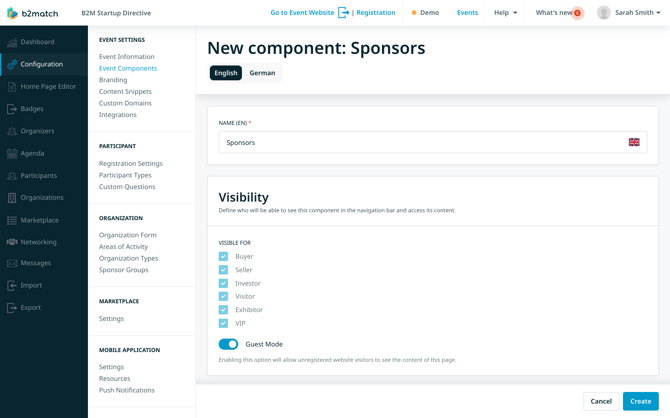
#### Sponsors
The **Sponsors component** redirects users to the [**Sponsors page**](https://support.b2match.com/en/understanding-b2match-sponsors?hsLang=en).
Enter the name you want to be displayed on the navigation bar in the **Name field**.
Then, configure the component's visibility in the **Visibility section**.
#### Organizers
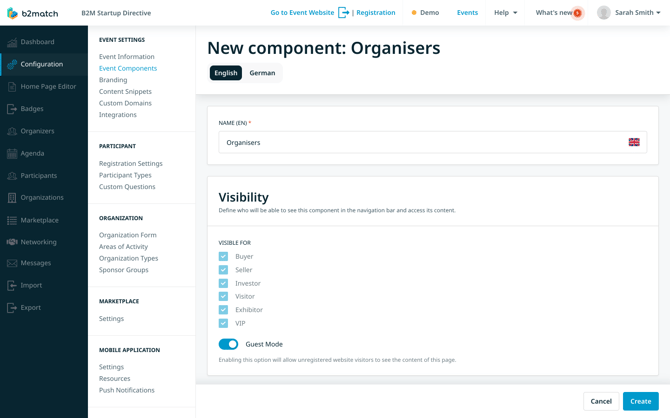
The **Organizers component** redirects users to the organizers page, displaying the main and support organizers' contact information.
Configure this event component by entering the event component's name in the **Name field** and configuring the component's visibility in the **Visibility section**.
#### External Link
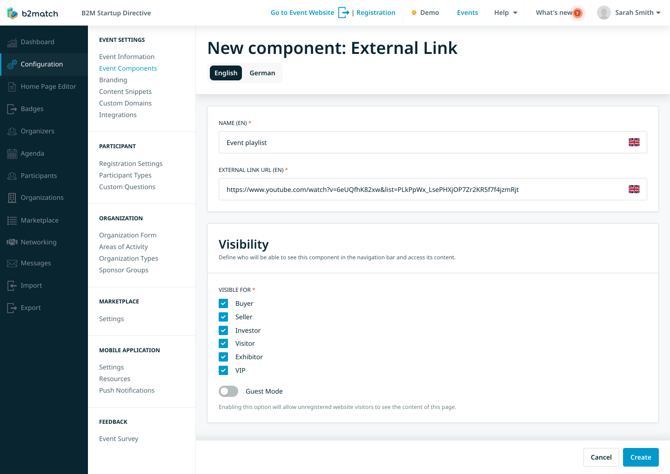
If you choose the **External link component,** first, enter the name of the component in the **Name field**.
Then, paste the external link to the desired page in the **External link URL field**.
After that, configure the visibility of the event component in the **Visibility section**.
Tip: You can use this option to integrate external content, like a Kahoot quiz, into your event.
You can connect the pages you've created in the [**home page editor**](https://support.b2match.com/en/adding-and-managing-new-pages?hsLang=en) as external components.
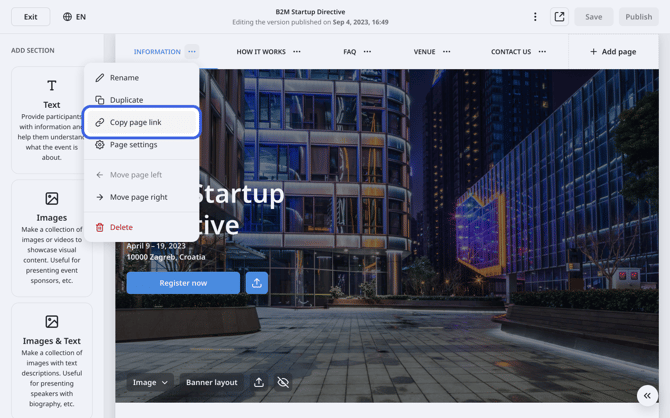
To do this, stat by opening the [**home page editor**](https://support.b2match.com/en/understanding-the-home-page-editor?hsLang=en) from the left sidebar of the Organizer's tool.
Then, locate the desired page you wish to include as an external component in the header.
Click on the ***3 dots*** located next to the page's name, and from the **drop-down menu**, select ***Copy page link***.
After that, navigate to the **Event components page**.
Here, choose **External link**, paste the copied link into the designated **External link URL field** and click on the ***Create***button.
Tip: Don't forget to hide the page from your homepage's subnavigation! To do this, head over to Page settings in the home page editor and tick the **Hide from the subnavigation** checkbox.
#### Walls.io
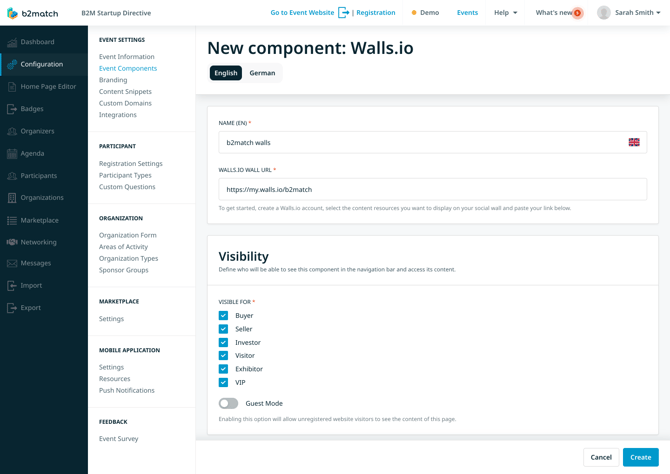
This component redirects users to [**Walls.io**](https://walls.io/), an interactive social wall for participants to share their impressions of the event.
To implement Walls.io into your event, first **create a Walls.io account**. Then, select the content resources you want to display on the social wall and paste the Walls.io wall link into the **Walls.io wall URL field**.
#### Drop-down Menu
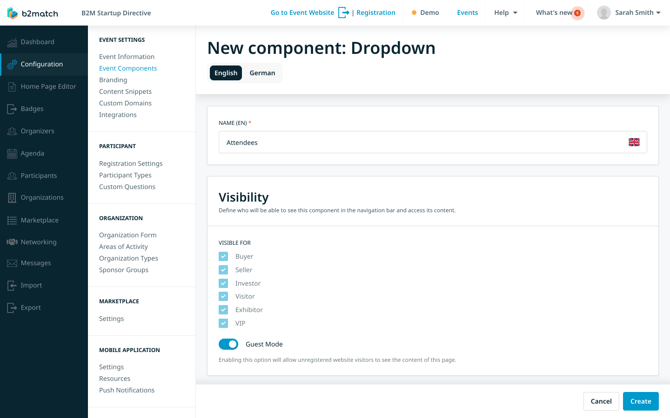
The **Drop-down menu component component** creates an empty drop-down menu where you can add other event components.
First, enter the drop-down menu's name in the **Name field**, and click on the ***Create button*** to create it.
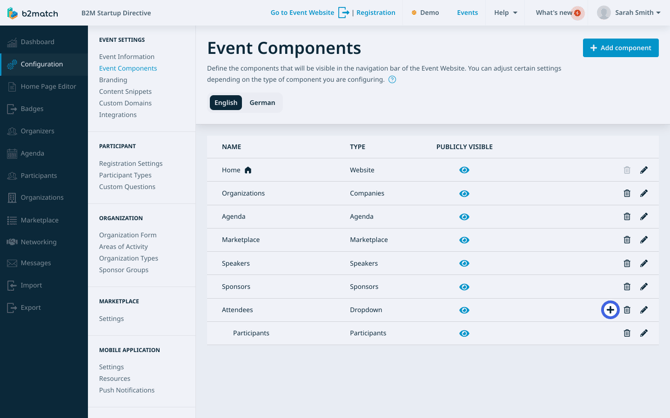
After creating the drop-down menu, it will appear in the event components list.
To add components to the drop-down, click on the ***plus button*** next to it. This will prompt you to create a new component, which will then be visible and available to choose from the drop-down menu.
### How can I edit event components?
After creating event components, you can edit them at any time.
To edit a component, locate it in the **Event components page** and click on the ***pencil icon*** next to it.
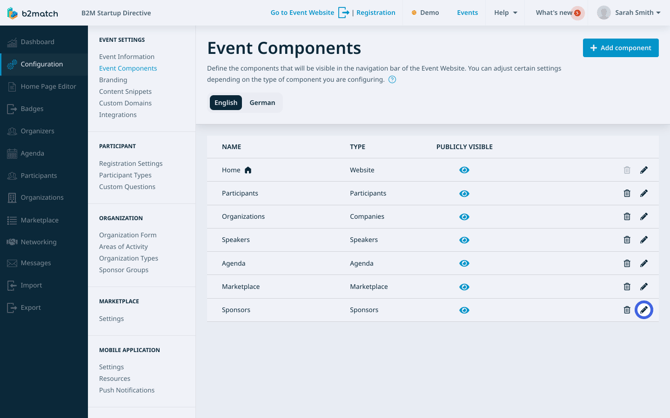
Then, you can modify the component's name, data customization, and visibility settings according to your needs.
If you ever need to remove a component from the navigation bar, the process can be completed in just a few clicks. For detailed instructions on how to delete event components, please refer to our article on [**deleting event components**](https://support.b2match.com/en/deleting-event-components?hsLang=en).
### How can I reorder event components?
On the **Event components page**, you'll find the components displayed in the order they appear on the navigation bar on your event's website.
If you wish to change the order of event components, first, **click on the component** you want to reorder and **drag it** to the desired position on the list.
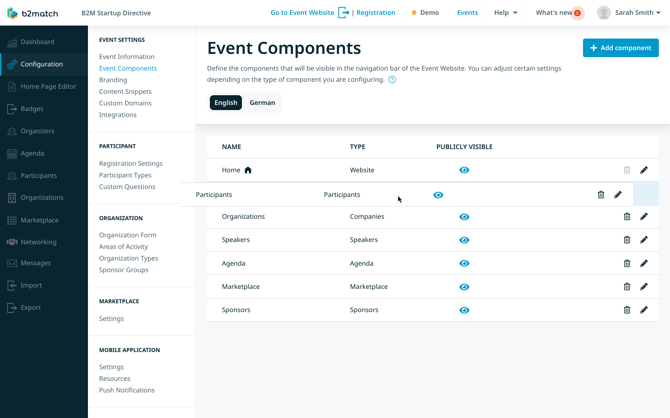
The new order will automatically reflect on the navigation bar on the event website.
*If you didn't find an answer to your questions, please get in touch with the Support Team* [***here***](https://www.b2match.com/contact-us/organizer-support?utm_source=knowledgebase&utm_medium=link&utm_content=knowledgebase_article)*.*
- [Organizer Guide](https://support.b2match.com/organizer-guide?hsLang=en#main-content)
- [Your Organizer Account](https://support.b2match.com/organizer-guide?hsLang=en#your-organizer-account)
- [Managing Organizers](https://support.b2match.com/organizer-guide?hsLang=en#managing-organizers)
- [Workspace Management](https://support.b2match.com/organizer-guide?hsLang=en#workspace-management)
- [Event Management](https://support.b2match.com/organizer-guide?hsLang=en#event-management)
- [Home Page Editor](https://support.b2match.com/organizer-guide?hsLang=en#home-page-editor)
- [Event Settings](https://support.b2match.com/organizer-guide?hsLang=en#event-settings)
- [Event Components](https://support.b2match.com/organizer-guide?hsLang=en#event-components)
- [Branding](https://support.b2match.com/organizer-guide?hsLang=en#branding)
- [Registration Settings](https://support.b2match.com/organizer-guide?hsLang=en#registration-settings)
- [Custom Questions](https://support.b2match.com/organizer-guide?hsLang=en#custom-questions)
- [Participant Types](https://support.b2match.com/organizer-guide?hsLang=en#participant-types)
- [Ticketing](https://support.b2match.com/organizer-guide?hsLang=en#ticketing)
- [Agenda: Sessions](https://support.b2match.com/organizer-guide?hsLang=en#agenda-sessions)
- [Agenda: Session Locations](https://support.b2match.com/organizer-guide?hsLang=en#agenda-session-locations)
- [Agenda: Tracks](https://support.b2match.com/organizer-guide?hsLang=en#agenda-tracks)
- [Agenda: Topics](https://support.b2match.com/organizer-guide?hsLang=en#agenda-topics)
- [Agenda: Live Streams](https://support.b2match.com/organizer-guide?hsLang=en#agenda-live-streams)
- [Participants: Managing participants](https://support.b2match.com/organizer-guide?hsLang=en#participants-managing-participants)
- [Participants: Participant Types](https://support.b2match.com/organizer-guide?hsLang=en#participants-participant-types)
- [Participants: Speakers](https://support.b2match.com/organizer-guide?hsLang=en#participants-speakers)
- [Organizations: Managing Organizations](https://support.b2match.com/organizer-guide?hsLang=en#organizations-managing-organizations)
- [Organizations: Organization Types](https://support.b2match.com/organizer-guide?hsLang=en#organizations-organization-types)
- [Organizations: Areas of Activity](https://support.b2match.com/organizer-guide?hsLang=en#organizations-areas-of-activity)
- [Organizations: Sponsors](https://support.b2match.com/organizer-guide?hsLang=en#organizations-sponsors)
- [Meetings](https://support.b2match.com/organizer-guide?hsLang=en#meetings)
- [Meetings: Settings](https://support.b2match.com/organizer-guide?hsLang=en#meetings-settings)
- [Meetings: Meeting Blocks](https://support.b2match.com/organizer-guide?hsLang=en#meetings-meeting-blocks)
- [Meetings: Meeting Locations](https://support.b2match.com/organizer-guide?hsLang=en#meetings-meeting-locations)
- [Marketplace](https://support.b2match.com/organizer-guide?hsLang=en#marketplace)
- [Emails & Notifications: Outbox Emails](https://support.b2match.com/organizer-guide?hsLang=en#emails-notifications-outbox-emails)
- [Emails & Notifications: Automated Email Notifications](https://support.b2match.com/organizer-guide?hsLang=en#emails-notifications-automated-email-notifications)
- [Emails & Notifications: Announcements](https://support.b2match.com/organizer-guide?hsLang=en#emails-notifications-announcements)
- [Advanced Search](https://support.b2match.com/organizer-guide?hsLang=en#advanced-search)
- [Data Import & Export](https://support.b2match.com/organizer-guide?hsLang=en#data-import-export)
- [In-Person Participant Management: Badges](https://support.b2match.com/organizer-guide?hsLang=en#in-person-participant-management-badges)
- [In-Person Participant Management: Check-In App](https://support.b2match.com/organizer-guide?hsLang=en#in-person-participant-management-check-in-app)
- [In-Person Participant Management: On-Site Support](https://support.b2match.com/organizer-guide?hsLang=en#in-person-participant-management-on-site-support)
- [Mobile Event App](https://support.b2match.com/organizer-guide?hsLang=en#mobile-event-app)
- [Community Management Platform](https://support.b2match.com/organizer-guide?hsLang=en#community-management-platform)
- [Registration Form](https://support.b2match.com/organizer-guide?hsLang=en#registration-form)
- [Participant Guide](https://support.b2match.com/participant-guide?hsLang=en#main-content)
- [Getting Started](https://support.b2match.com/participant-guide?hsLang=en#getting-started)
- [Account Settings](https://support.b2match.com/participant-guide?hsLang=en#account-settings)
- [Event Settings](https://support.b2match.com/participant-guide?hsLang=en#event-settings)
- [Profile](https://support.b2match.com/participant-guide?hsLang=en#profile)
- [Agenda](https://support.b2match.com/participant-guide?hsLang=en#agenda)
- [Networking: Meetings](https://support.b2match.com/participant-guide?hsLang=en#networking-meetings)
- [Networking: Conversations](https://support.b2match.com/participant-guide?hsLang=en#networking-conversations)
- [Marketplace](https://support.b2match.com/participant-guide?hsLang=en#marketplace)
- [Feedback](https://support.b2match.com/participant-guide?hsLang=en#feedback)
[](https://www.b2match.com)
Need more help? Contact us at support@b2match.com
[mailto:support@b2match.com](mailto:support@b2match.com)
Copyright © 2025, b2match GmbH