---
title: Managing Payments
description: As participants register for your event and purchase tickets, you'll find yourself handling numerous invoices. Before making tickets available, it's essential to configure ticketing settings. Click o
---
[Skip to content](https://support.b2match.com/managing-payments#main-content)
[](https://www.b2match.com/)
- [Log in](https://admin.b2match.com/cp/log-in)
Open main navigation
Close main navigation
- [Log in](https://admin.b2match.com/cp/log-in)
- [Contact us](http://www.b2match.com/contact-us)
[Contact us](http://www.b2match.com/contact-us)
How can we help you?
- There are no suggestions because the search field is empty.
1. [Help Center](https://support.b2match.com/?hsLang=en)
2. [Organizer Guide](https://support.b2match.com/organizer-guide?hsLang=en)
3. [Ticketing](https://support.b2match.com/organizer-guide?hsLang=en#ticketing)
# Managing Payments
As participants register for your event and purchase tickets, you'll find yourself handling numerous invoices. Before making tickets available, it's essential to [**configure ticketing settings**](https://support.b2match.com/en/configuring-ticketing-settings?hsLang=en).
### How can I manage payments?
Click on ***Ticketing*** on the **left sidebar** of the Organizer’s Tool.
In the **Payments tab** you will see all created invoices.
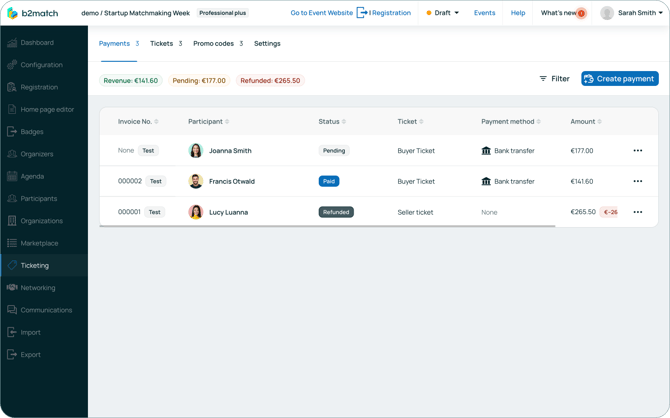
The table displays the invoice number, participant who purchased the ticket, payment status (pending, paid, refunded), ticket name, payment method, and the amount paid.
You can access details about a payment by clicking on it. This will open the **Payment info sidebar**.
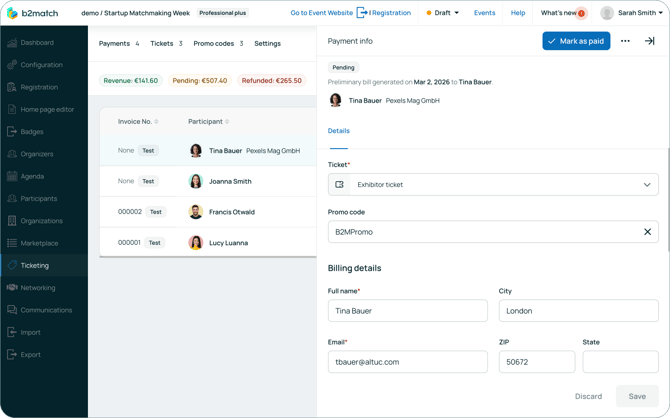
If a payment is pending, you can still change the ticket type, enter the promo code, and edit billing details.
Note: Keep in mind that paid or refunded payments have limited editing options, allowing only billing details to be changed.
After making desired edits, click on ***Save***.
#### Generating PDF Invoices
After a participant purchases a ticket, you will be able to see their purchase in the **Payments tab**. For each purchase, you can generate a **PDF invoice** or a **PDF preliminary bill** if the payment hasn't been finalized yet.
To generate the PDF, first, locate the payment in the table.
Then, click on the ***3 dots*** and from the **drop-down menu** select ***PDF Preliminary bill*** or ***PDF Invoice***.
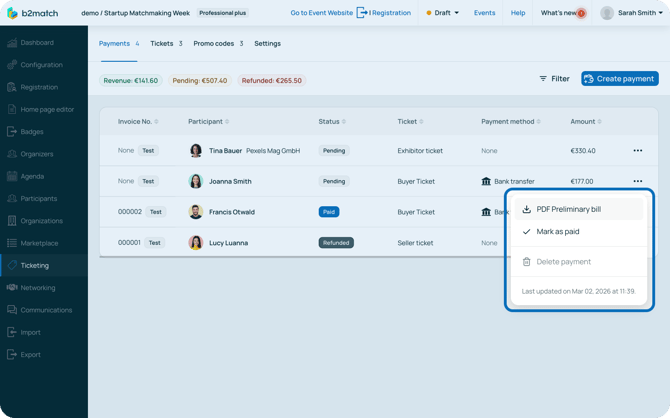
This will automatically download the document to your device.
Note: Keep in mind that pending payments generate only a preliminary bill, pair payments generate a PDF invoice, while refunds generate a credit note.
#### Marking payments as paid
If your participants pay for their tickets via bank transfer or if you manually created a payment, you should mark the payment as paid after receiving the participant’s transfer.
First, locate the payment with the **pending status** you wish to mark as paid.
Then, click on the ***3 dots*** and from the **drop-down menu**, select ***Mark as paid***.
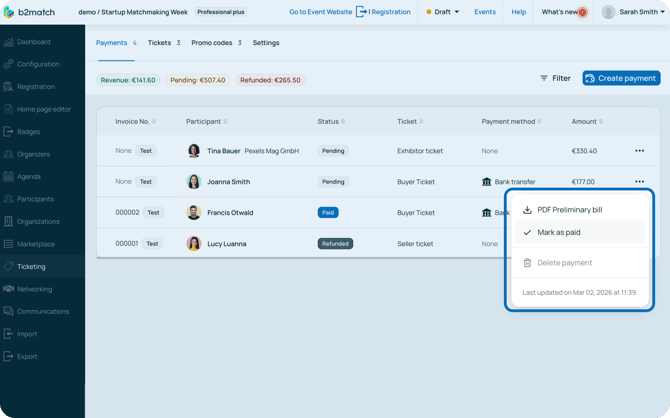
This will open the **Confirm payment modal**.
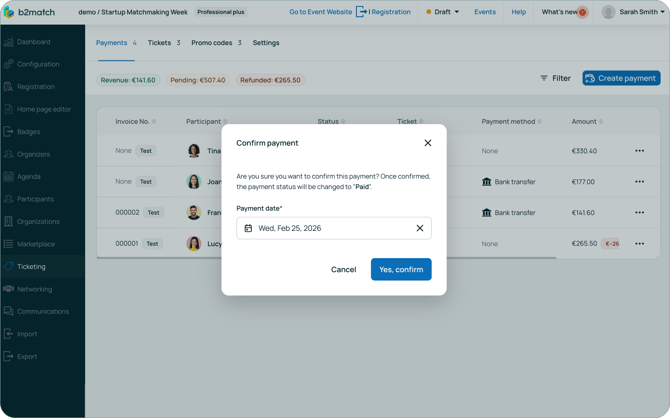
Here, choose the payment date from the calendar and click on ***Yes, confirm***.
Note: Keep in mind that once a payment has been marked as paid, you can only edit the payment date or refund the payment. A paid payment cannot revert to pending status.
#### Refunding payments
If you wish to refund a participant, first find their payment with the **paid status** and click on the ***3 dots***.
From the **drop-down menu**, select ***Refund payment***.
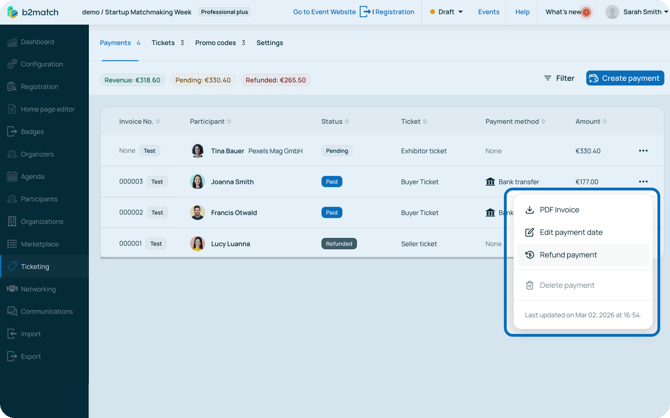
This will open the **Refund payment modal** asking for confirmation. Inside the modal, you can choose to refund the entire amount or issue a partial refund.
If you're issuing a partial refund, enter the amount you wish to refund in the **Refund amount** field.
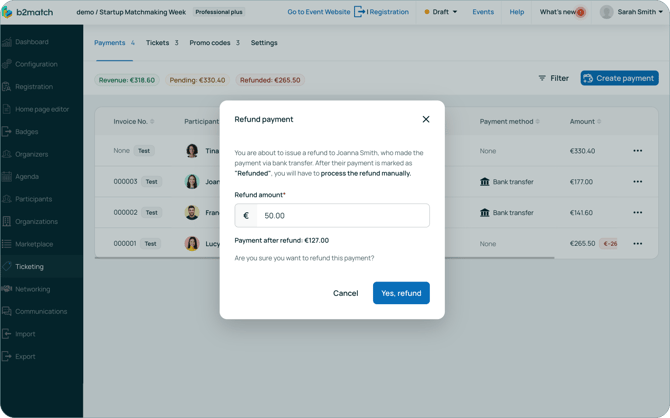
To refund the payment, click ***Yes, refund***.
Note: Keep in mind that, for bank transfer payments, you will still need to manually process the refund.
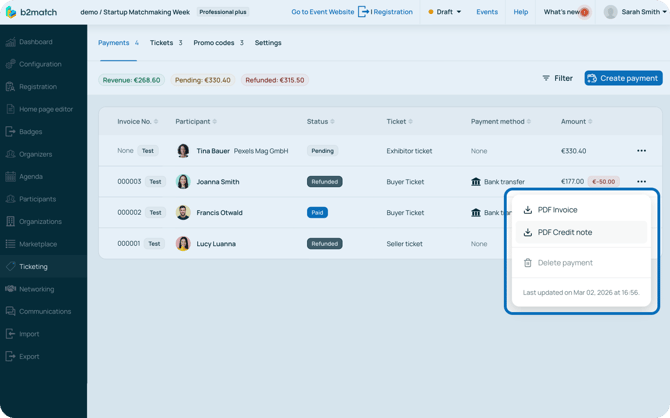
Once you mark a payment as refunded, the system will automatically generate a **PDF credit note**. This document ensures you can properly refund your participants.
To download the PDF credit note, first, locate the payment with **refunded status** in the table.
Then, click on the ***3 dots*** and from the **drop-down menu** select ***PDF Credit Note***.
#### Deleting payments
If you wish to delete a payment from the platform, locate the payment and click on the ***3 dots***.
From the **drop-down menu**, select ***Delete payment***.
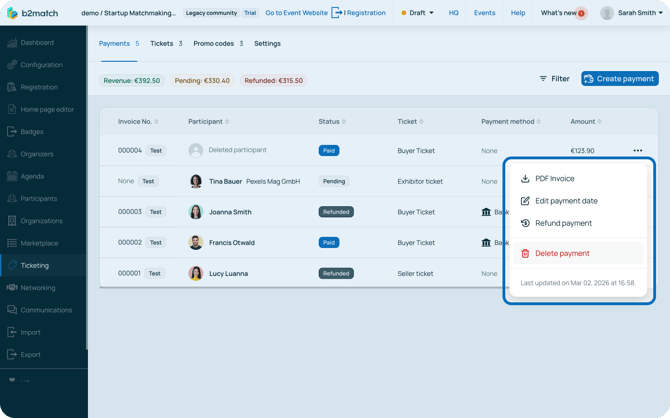
This will open the **Delete payment modal** asking for confirmation of deletion. If you wish to proceed, click on ***Yes, delete***.
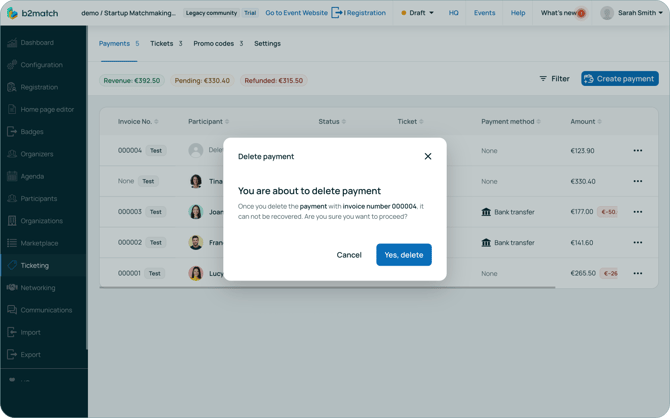
Note: Keep in mind that you can only delete a payment if the participant’s account is first deleted.
*If you didn't find an answer to your questions, please get in touch with the Support Team* [***here***](https://www.b2match.com/contact-us/organizer-support?utm_source=knowledgebase&utm_medium=link&utm_content=knowledgebase_article)*.*
- [Organizer Guide](https://support.b2match.com/organizer-guide?hsLang=en#main-content)
- [Your Organizer Account](https://support.b2match.com/organizer-guide?hsLang=en#your-organizer-account)
- [Managing Organizers](https://support.b2match.com/organizer-guide?hsLang=en#managing-organizers)
- [Workspace Management](https://support.b2match.com/organizer-guide?hsLang=en#workspace-management)
- [Event Management](https://support.b2match.com/organizer-guide?hsLang=en#event-management)
- [Home Page Editor](https://support.b2match.com/organizer-guide?hsLang=en#home-page-editor)
- [Event Settings](https://support.b2match.com/organizer-guide?hsLang=en#event-settings)
- [Event Components](https://support.b2match.com/organizer-guide?hsLang=en#event-components)
- [Branding](https://support.b2match.com/organizer-guide?hsLang=en#branding)
- [Registration Settings](https://support.b2match.com/organizer-guide?hsLang=en#registration-settings)
- [Custom Questions](https://support.b2match.com/organizer-guide?hsLang=en#custom-questions)
- [Participant Types](https://support.b2match.com/organizer-guide?hsLang=en#participant-types)
- [Ticketing](https://support.b2match.com/organizer-guide?hsLang=en#ticketing)
- [Agenda: Sessions](https://support.b2match.com/organizer-guide?hsLang=en#agenda-sessions)
- [Agenda: Session Locations](https://support.b2match.com/organizer-guide?hsLang=en#agenda-session-locations)
- [Agenda: Tracks](https://support.b2match.com/organizer-guide?hsLang=en#agenda-tracks)
- [Agenda: Topics](https://support.b2match.com/organizer-guide?hsLang=en#agenda-topics)
- [Agenda: Live Streams](https://support.b2match.com/organizer-guide?hsLang=en#agenda-live-streams)
- [Participants: Managing participants](https://support.b2match.com/organizer-guide?hsLang=en#participants-managing-participants)
- [Participants: Participant Types](https://support.b2match.com/organizer-guide?hsLang=en#participants-participant-types)
- [Participants: Speakers](https://support.b2match.com/organizer-guide?hsLang=en#participants-speakers)
- [Organizations: Managing Organizations](https://support.b2match.com/organizer-guide?hsLang=en#organizations-managing-organizations)
- [Organizations: Organization Types](https://support.b2match.com/organizer-guide?hsLang=en#organizations-organization-types)
- [Organizations: Areas of Activity](https://support.b2match.com/organizer-guide?hsLang=en#organizations-areas-of-activity)
- [Organizations: Sponsors](https://support.b2match.com/organizer-guide?hsLang=en#organizations-sponsors)
- [Meetings](https://support.b2match.com/organizer-guide?hsLang=en#meetings)
- [Meetings: Settings](https://support.b2match.com/organizer-guide?hsLang=en#meetings-settings)
- [Meetings: Meeting Blocks](https://support.b2match.com/organizer-guide?hsLang=en#meetings-meeting-blocks)
- [Meetings: Meeting Locations](https://support.b2match.com/organizer-guide?hsLang=en#meetings-meeting-locations)
- [Marketplace](https://support.b2match.com/organizer-guide?hsLang=en#marketplace)
- [Emails & Notifications: Outbox Emails](https://support.b2match.com/organizer-guide?hsLang=en#emails-notifications-outbox-emails)
- [Emails & Notifications: Automated Email Notifications](https://support.b2match.com/organizer-guide?hsLang=en#emails-notifications-automated-email-notifications)
- [Emails & Notifications: Announcements](https://support.b2match.com/organizer-guide?hsLang=en#emails-notifications-announcements)
- [Advanced Search](https://support.b2match.com/organizer-guide?hsLang=en#advanced-search)
- [Data Import & Export](https://support.b2match.com/organizer-guide?hsLang=en#data-import-export)
- [In-Person Participant Management: Badges](https://support.b2match.com/organizer-guide?hsLang=en#in-person-participant-management-badges)
- [In-Person Participant Management: Check-In App](https://support.b2match.com/organizer-guide?hsLang=en#in-person-participant-management-check-in-app)
- [In-Person Participant Management: On-Site Support](https://support.b2match.com/organizer-guide?hsLang=en#in-person-participant-management-on-site-support)
- [Mobile Event App](https://support.b2match.com/organizer-guide?hsLang=en#mobile-event-app)
- [Community Management Platform](https://support.b2match.com/organizer-guide?hsLang=en#community-management-platform)
- [Registration Form](https://support.b2match.com/organizer-guide?hsLang=en#registration-form)
- [Participant Guide](https://support.b2match.com/participant-guide?hsLang=en#main-content)
- [Getting Started](https://support.b2match.com/participant-guide?hsLang=en#getting-started)
- [Account Settings](https://support.b2match.com/participant-guide?hsLang=en#account-settings)
- [Event Settings](https://support.b2match.com/participant-guide?hsLang=en#event-settings)
- [Profile](https://support.b2match.com/participant-guide?hsLang=en#profile)
- [Agenda](https://support.b2match.com/participant-guide?hsLang=en#agenda)
- [Networking: Meetings](https://support.b2match.com/participant-guide?hsLang=en#networking-meetings)
- [Networking: Conversations](https://support.b2match.com/participant-guide?hsLang=en#networking-conversations)
- [Marketplace](https://support.b2match.com/participant-guide?hsLang=en#marketplace)
- [Feedback](https://support.b2match.com/participant-guide?hsLang=en#feedback)
[](https://www.b2match.com)
Need more help? Contact us at support@b2match.com
[mailto:support@b2match.com](mailto:support@b2match.com)
Copyright © 2025, b2match GmbH