---
title: Creating an Organization Form
description: The organization form enables companies to provide essential information, such as annual revenue, customer base or global reach. This information is prominently displayed on company profiles, providin
---
[Skip to content](https://support.b2match.com/organization-form#main-content)
[](https://www.b2match.com/)
- [Log in](https://admin.b2match.com/cp/log-in)
Open main navigation
Close main navigation
- [Log in](https://admin.b2match.com/cp/log-in)
- [Contact us](http://www.b2match.com/contact-us)
[Contact us](http://www.b2match.com/contact-us)
How can we help you?
- There are no suggestions because the search field is empty.
1. [Help Center](https://support.b2match.com/?hsLang=en)
2. [Organizer Guide](https://support.b2match.com/organizer-guide?hsLang=en)
3. [Organizations: Managing Organizations](https://support.b2match.com/organizer-guide?hsLang=en#organizations-managing-organizations)
# Creating an Organization Form
The organization form enables companies to provide essential information, such as annual revenue, customer base or global reach. This information is prominently displayed on company profiles, providing potential partners and stakeholders with a clear and insightful overview of the business.
### How do I create questions for the Organization Form?
Go to the **Configuration**.
In the **Organization** section, select **Organization Form**.
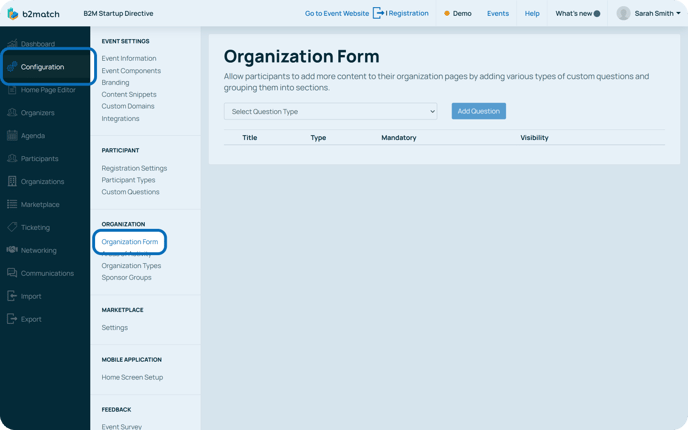
From the **drop-down** at the top of the page, first select the **question type.**
Then, click on the **Add Question** button.
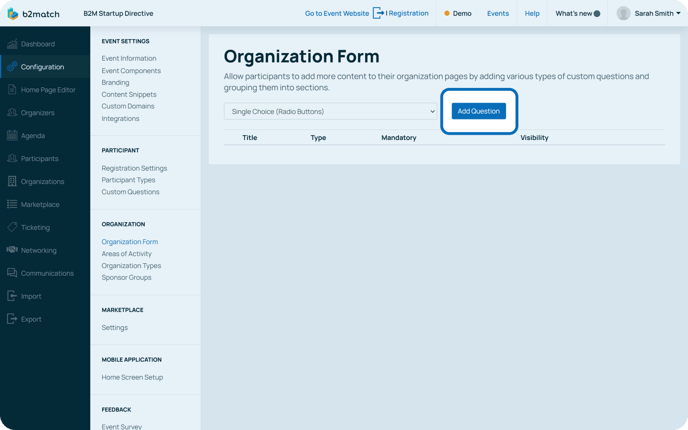
This will open the **New Question modal**.
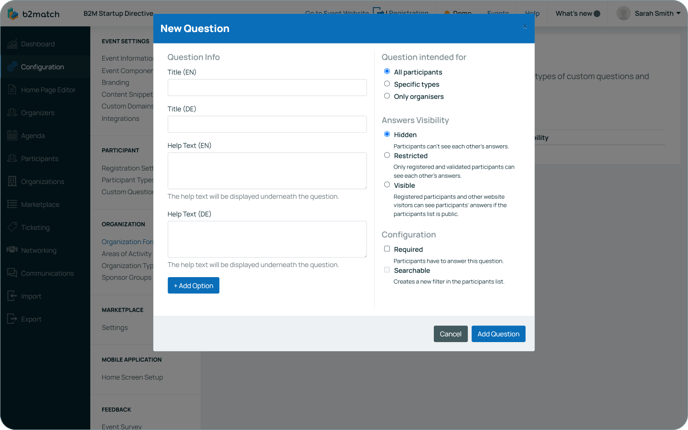
In the **New Question modal**, type in your question in the **Title field**.
In the **Help Text field**, you can write instructions to help your participants understand your question better. This text will be displayed under the question.
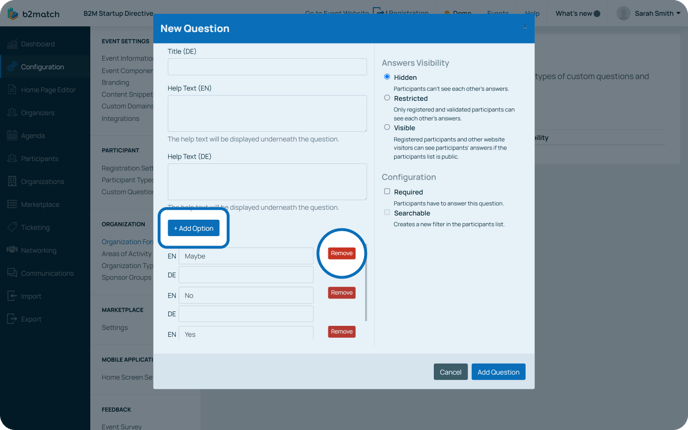
Click on the ***Add Option button*** to create answer options that your participants will be able to choose from.
If you need to delete an option, simply click on the ***Remove button*** next to it.
In the **Question intended for section**, you can specify who can answer your question. You can choose between **all participants**, **specific types** and **only organizers**.
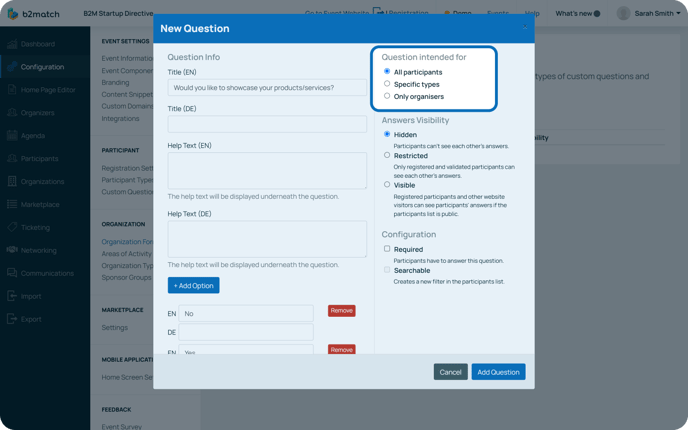
When selecting ***Specific types***, choose the participant type who can answer the question.
Tip: If you wish to choose more than one participant type, hold the CTRL button on your keyboard while selecting the desired types. If your event is hybrid, you will also be able to choose between on-site or remote attendance type.
Choosing the ***Only organizers*** option means only event organizers can answer the question on behalf of participants. Organizers can answer on participants' behalf through the **[organization's profile overview](https://support.b2match.com/en/organizations-profile-overview?hsLang=en)**, while the answers these questions and their answers won't be accessible to participants.
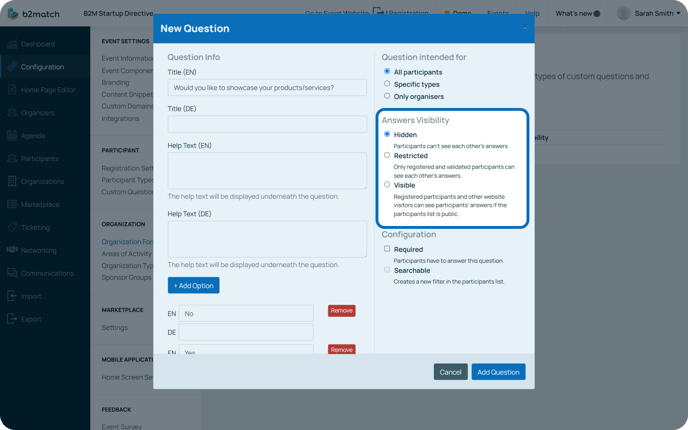
In the **Answers Visibility section**, you can configure the visibility of the participant's answer. Here you have three options.
- If you select **Hidden,** the participants will not be able to see each other's answers.
- If you select **Restricted**, only registered and validated participants will be able to view each other's answers.
- If you choose **Visible**, registered participants and even unregistered website visitors can view answers, if the participant list is public.
In the **Configuration section**, you will see two check boxes.
If you wish to make your question mandatory, tick the **Required box**.
To create a filter based on the answers in the participant list, tick the **Searchable** box. This allows website visitors and other participants to filter participants based on their answers.
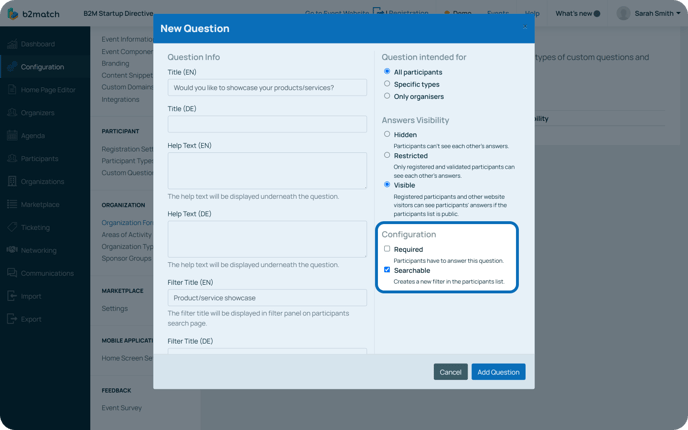
Note: The **Searchable option** can only be selected if answers are set to **Visible**. Also, keep in mind that this feature is only available for single and multiple-choice questions.
### What are the types of questions available in the Organization Form?
There are 7 different types of questions.
#### Single Choice (Radio Buttons)
This type of custom question allows you to create a question with multiple answering possibilities. However, your participants will be able to choose only one answer out of multiple options.
The answers to the questions will be displayed in the form of radio buttons on the event website.
#### Single Choice (Select Field)
This type allows participants to choose one single option out of multiple choices that are mutually exclusive.
These choices will be displayed in a drop-down menu on the event website.
#### Multiple Choice (Check Boxes)
A multiple-choice question allows your participants to choose multiple answers. These answers will be displayed with check boxes.
#### Single-Line Text (Text Field)
The single-line text custom question allows your participants to answer the question by typing their answer in a single line of free text. However, the maximum character number of the text is 255.
#### Multi-Line Text (Text Area)
The multi-line text custom question allows your participants to go in depth with their answer and add multiple text paragraphs to the text area. The maximum character number of the text is 5000.
#### File Upload
This type of custom question allows your participants to upload documents. The file's maximum size is 10 MB, and acceptable formats include various Microsoft Office formats and PDFs.
The participants will see the Upload File button on the event website. By clicking on it, they can easily upload a file to the platform.
#### Question Group
While not precisely a question, this feature empowers organizers to cluster specific questions by assigning them a shared group title.
### Where is the Organization Form visible to participants?
Participants can provide organization related information when creating an organization page. Depending on the event setup, these questions will appear either in the registration form or in the**[Create Organisation Page Form](https://support.b2match.com/en/creating-editing-organization-page?hsLang=en)** after participants register.
### How can I download the organization related responses?
To**[export organization related responses](https://support.b2match.com/en/exporting-event-data?hsLang=en)**, you will need to go to the **Export** section.
Click on the button **Prepare** next to the Participants data.
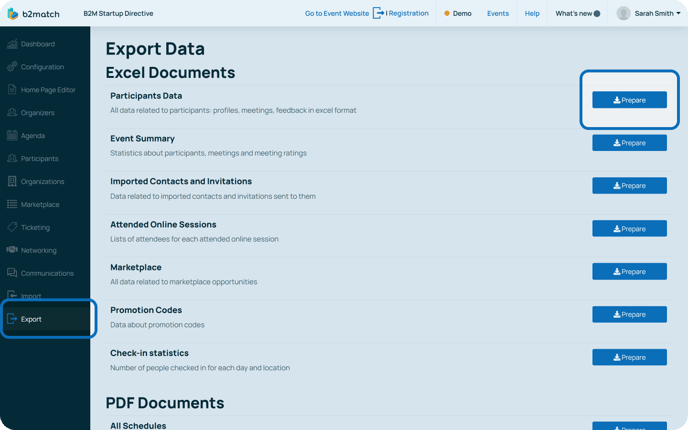
Once the document is ready, click the **Download for X participants**.
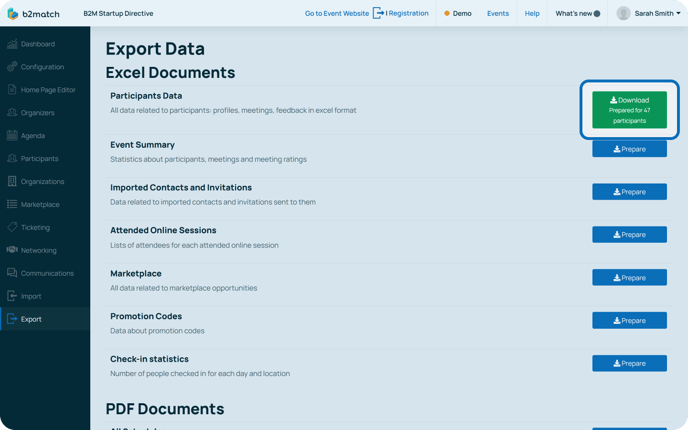
The responses will be located in the **Participants sheet** in the Excel file.
*If you didn't find an answer to your questions, please get in touch with the Support Team* [***here***](https://www.b2match.com/contact-us/organizer-support?utm_source=knowledgebase&utm_medium=link&utm_content=knowledgebase_article)*.*
- [Organizer Guide](https://support.b2match.com/organizer-guide?hsLang=en#main-content)
- [Your Organizer Account](https://support.b2match.com/organizer-guide?hsLang=en#your-organizer-account)
- [Managing Organizers](https://support.b2match.com/organizer-guide?hsLang=en#managing-organizers)
- [Workspace Management](https://support.b2match.com/organizer-guide?hsLang=en#workspace-management)
- [Event Management](https://support.b2match.com/organizer-guide?hsLang=en#event-management)
- [Home Page Editor](https://support.b2match.com/organizer-guide?hsLang=en#home-page-editor)
- [Event Settings](https://support.b2match.com/organizer-guide?hsLang=en#event-settings)
- [Event Components](https://support.b2match.com/organizer-guide?hsLang=en#event-components)
- [Branding](https://support.b2match.com/organizer-guide?hsLang=en#branding)
- [Registration Settings](https://support.b2match.com/organizer-guide?hsLang=en#registration-settings)
- [Custom Questions](https://support.b2match.com/organizer-guide?hsLang=en#custom-questions)
- [Participant Types](https://support.b2match.com/organizer-guide?hsLang=en#participant-types)
- [Ticketing](https://support.b2match.com/organizer-guide?hsLang=en#ticketing)
- [Agenda: Sessions](https://support.b2match.com/organizer-guide?hsLang=en#agenda-sessions)
- [Agenda: Session Locations](https://support.b2match.com/organizer-guide?hsLang=en#agenda-session-locations)
- [Agenda: Tracks](https://support.b2match.com/organizer-guide?hsLang=en#agenda-tracks)
- [Agenda: Topics](https://support.b2match.com/organizer-guide?hsLang=en#agenda-topics)
- [Agenda: Live Streams](https://support.b2match.com/organizer-guide?hsLang=en#agenda-live-streams)
- [Participants: Managing participants](https://support.b2match.com/organizer-guide?hsLang=en#participants-managing-participants)
- [Participants: Participant Types](https://support.b2match.com/organizer-guide?hsLang=en#participants-participant-types)
- [Participants: Speakers](https://support.b2match.com/organizer-guide?hsLang=en#participants-speakers)
- [Organizations: Managing Organizations](https://support.b2match.com/organizer-guide?hsLang=en#organizations-managing-organizations)
- [Organizations: Organization Types](https://support.b2match.com/organizer-guide?hsLang=en#organizations-organization-types)
- [Organizations: Areas of Activity](https://support.b2match.com/organizer-guide?hsLang=en#organizations-areas-of-activity)
- [Organizations: Sponsors](https://support.b2match.com/organizer-guide?hsLang=en#organizations-sponsors)
- [Meetings](https://support.b2match.com/organizer-guide?hsLang=en#meetings)
- [Meetings: Settings](https://support.b2match.com/organizer-guide?hsLang=en#meetings-settings)
- [Meetings: Meeting Blocks](https://support.b2match.com/organizer-guide?hsLang=en#meetings-meeting-blocks)
- [Meetings: Meeting Locations](https://support.b2match.com/organizer-guide?hsLang=en#meetings-meeting-locations)
- [Marketplace](https://support.b2match.com/organizer-guide?hsLang=en#marketplace)
- [Emails & Notifications: Outbox Emails](https://support.b2match.com/organizer-guide?hsLang=en#emails-notifications-outbox-emails)
- [Emails & Notifications: Automated Email Notifications](https://support.b2match.com/organizer-guide?hsLang=en#emails-notifications-automated-email-notifications)
- [Emails & Notifications: Announcements](https://support.b2match.com/organizer-guide?hsLang=en#emails-notifications-announcements)
- [Advanced Search](https://support.b2match.com/organizer-guide?hsLang=en#advanced-search)
- [Data Import & Export](https://support.b2match.com/organizer-guide?hsLang=en#data-import-export)
- [In-Person Participant Management: Badges](https://support.b2match.com/organizer-guide?hsLang=en#in-person-participant-management-badges)
- [In-Person Participant Management: Check-In App](https://support.b2match.com/organizer-guide?hsLang=en#in-person-participant-management-check-in-app)
- [In-Person Participant Management: On-Site Support](https://support.b2match.com/organizer-guide?hsLang=en#in-person-participant-management-on-site-support)
- [Mobile Event App](https://support.b2match.com/organizer-guide?hsLang=en#mobile-event-app)
- [Community Management Platform](https://support.b2match.com/organizer-guide?hsLang=en#community-management-platform)
- [Registration Form](https://support.b2match.com/organizer-guide?hsLang=en#registration-form)
- [Participant Guide](https://support.b2match.com/participant-guide?hsLang=en#main-content)
- [Getting Started](https://support.b2match.com/participant-guide?hsLang=en#getting-started)
- [Account Settings](https://support.b2match.com/participant-guide?hsLang=en#account-settings)
- [Event Settings](https://support.b2match.com/participant-guide?hsLang=en#event-settings)
- [Profile](https://support.b2match.com/participant-guide?hsLang=en#profile)
- [Agenda](https://support.b2match.com/participant-guide?hsLang=en#agenda)
- [Networking: Meetings](https://support.b2match.com/participant-guide?hsLang=en#networking-meetings)
- [Networking: Conversations](https://support.b2match.com/participant-guide?hsLang=en#networking-conversations)
- [Marketplace](https://support.b2match.com/participant-guide?hsLang=en#marketplace)
- [Feedback](https://support.b2match.com/participant-guide?hsLang=en#feedback)
[](https://www.b2match.com)
Need more help? Contact us at support@b2match.com
[mailto:support@b2match.com](mailto:support@b2match.com)
Copyright © 2025, b2match GmbH