
When you log in to the b2match platform, you're stepping into a powerful space designed to help you create, manage, and host events that leave a lasting impact.
The event Dashboard is your main hub, offering all the tools and insights you need to organize your events effectively. In this article, we'll walk you through the event Dashboard, exploring its features and how you can use them to streamline your event planning process.
What does the event dashboard look like?
Dashboard header
The dashboard header puts key information at your fingertips. In the upper left corner, you will see the name of your event.
To preview your event’s website before sharing it with attendees, click on Event website.
If you're curious about how the participant registration process looks, click on Registration to experience it firsthand. Keep in mind that this only works if your event is published. If your event is still in draft, you can preview the registration directly from the registration form instead.
Next to the Registration button, you will see a status tag indicating whether your event is in draft mode or published and available for participants.
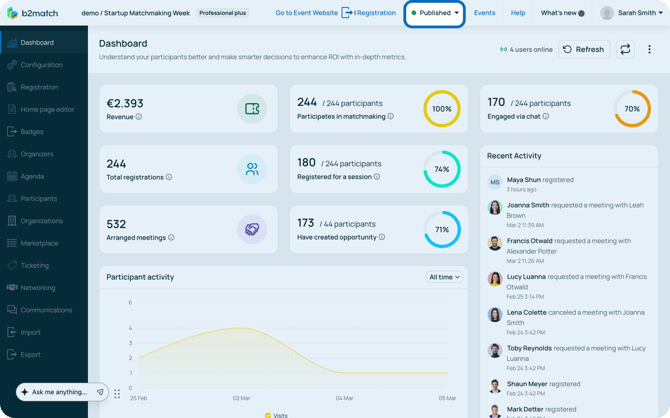
The Events button takes you back to your workspace, making it easy to switch between the different events you manage.
To further assist you, the dashboard header includes the Help center, with links to in-depth articles explaining every platform feature.
The What’s new drop-down menu keeps you informed about recent product updates.
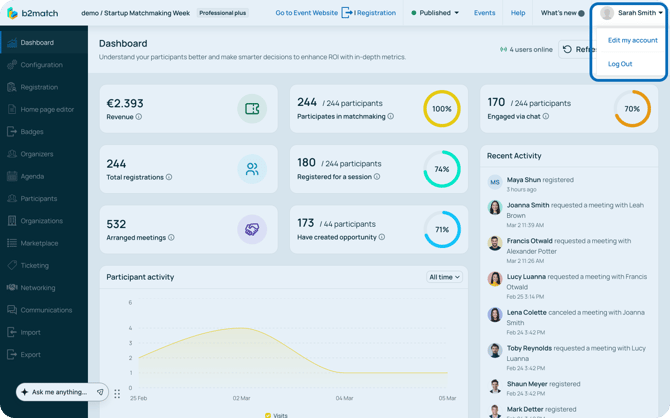
By clicking on your avatar in the upper right corner, you can quickly access options to edit your account or log out of the platform.
Left sidebar
The left sidebar is your gateway to various features that power your event, although the options available will depend on your package. From here, you can navigate through different sections of your event management process.
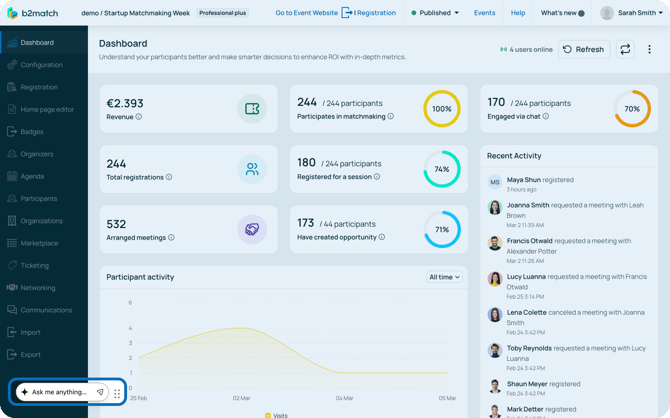
If you ever need assistance, our customer support team is just a click away. Simply tap on the message bubble located in the bottom left corner to reach out.
Main dashboard
The main dashboard is the heart of your event analytics. It presents your event's performance through easy-to-read widgets, graphs, and reports, helping you make data-driven decisions at a glance.
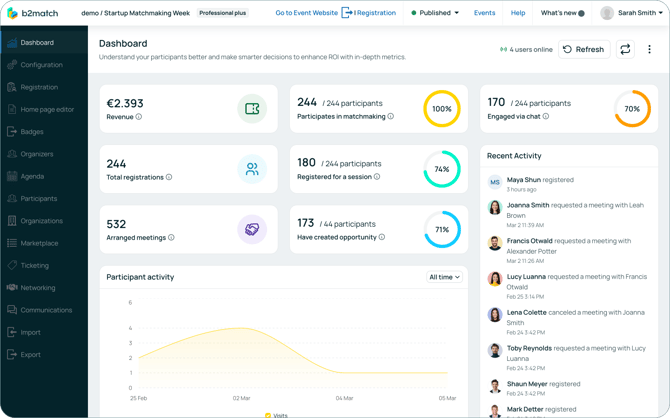
Right at the top, you can quickly spot key metrics such as revenue, total registrations, meetings arranged, and participant engagement across sessions, matchmaking, the Marketplace, and chat.
Note: Keep in mind that analytics shown on the event Dashboard will vary based on your license.
On the right side, the Recent Activity widget provides a live feed of important participant actions, so you never miss a key moment.
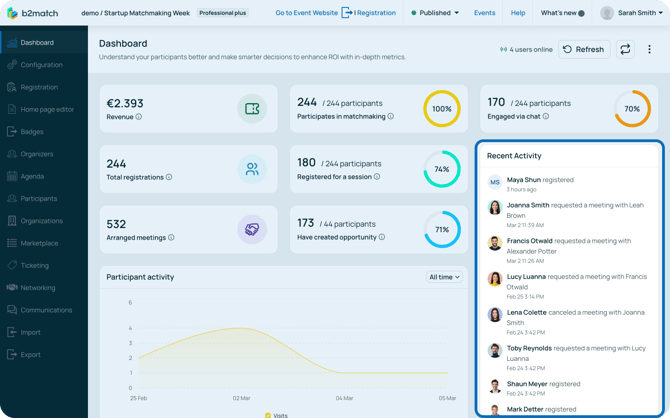
Below the main metrics, several tools help you monitor trends.
The Participant activity section features a line chart that tracks how actively attendees are using the platform day-by-day. This gives you a clear picture of engagement levels as your event progresses.
The line chart includes a time filter. Click the All time drop-down to narrow your view to the last 7 days, 30 days, 90 days, or select current month, current year, or all time.
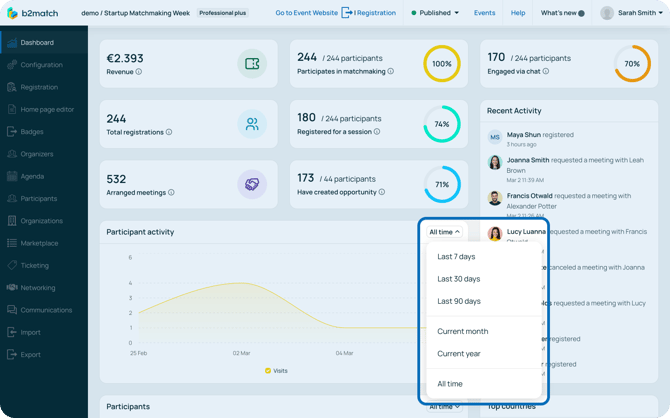
Below, the Participants widget uses a line chart to visualize registration trends. You can watch momentum build and spot spikes in sign-ups.
The Networking activities widget allows you to track matchmaking at your event by tracking number of meetings accepted, canceled, and requested.
The Top countries widget offers a quick snapshot of where your participants are joining from. It displays the top 7 countries, along with the number and percentage of attendees from each. This is especially useful for tailoring your welcome materials or confirming your marketing reach.
The Top networkers widget goes a step further by celebrating your most active participants. It functions as a leaderboard, showing you who has the most meetings, who is most requested, who sends the most requests, who is most active in chat, and who is most bookmarked by other attendees.
To cycle through these different criteria, simply click the drop-down button inside the widget.
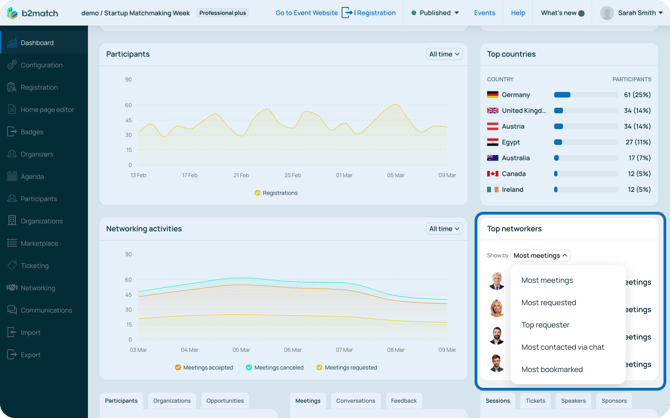
Next, you will find the Participants - Organizations - Opportunities widget, a powerful tool for segmenting your audience.
You can filter Participant data by type, status, organization status, or even by UTM parameters to track marketing source performance.
The Organization data shows the total number of organizations at your event, broken down by type, while Opportunity data can be filtered by opportunity type, status, and visibility.
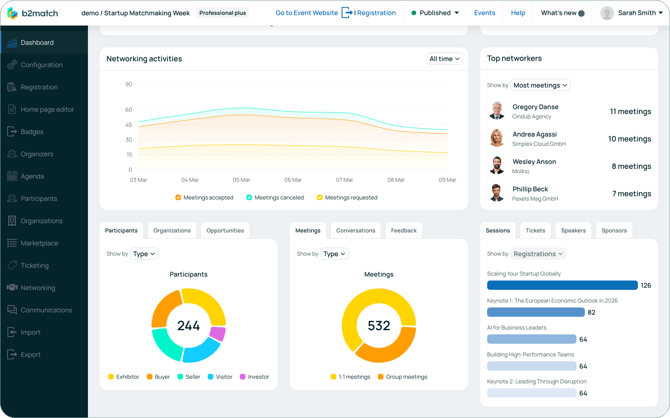
Right beside it, the Meetings - Conversations - Feedback widget focuses on networking dynamics.
The Meetings data displays the total number of meetings and can be filtered by type (1:1 or group), status (rejected, accepted, canceled, pending), and format (online or on-site).
Conversations data gives you insight into messaging activity, filterable by conversation type (1:1 or group chat), engagement level (answered or pending), and how the conversation started (via meeting request or direct message).
The Feedback data rounds this out by showing you how satisfied attendees are with their networking experience overall.
To filter any of the data in these widgets, simply click on the Show by Type dropdown and select the criteria you want to view.
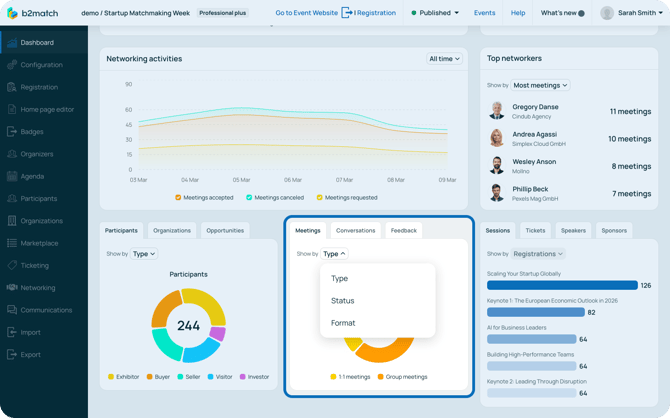
Finally, the Sessions - Tickets - Speakers - Sponsors widget highlights what (and who) is capturing attention.
The Sessions data reveals which sessions drew the largest crowds.
Tickets shows you which ticket types are the most popular.
Speakers and Sponsors data tracks profile views, helping you identify your biggest draws and most valuable partners.
For more detailed reports you can download and export, refer to our article on Exporting event data.
If you didn't find an answer to your questions, please get in touch with the Support Team here.