
As an event organizer, you understand the importance and value of your time during the event planning process. It can take hours, weeks, or even months to ensure everything runs smoothly. This is where batch actions come in handy!
By utilizing batch actions, you can efficiently carry out repetitive actions on a group of participants, preserving your valuable time. You can streamline your efforts to complete tasks more quickly than by carrying them out one at a time.
How to access batch actions?
Click on Participants on the left sidebar of the Organizer’s Tool.
Then, filter the participants to whom you want to apply the batch action.
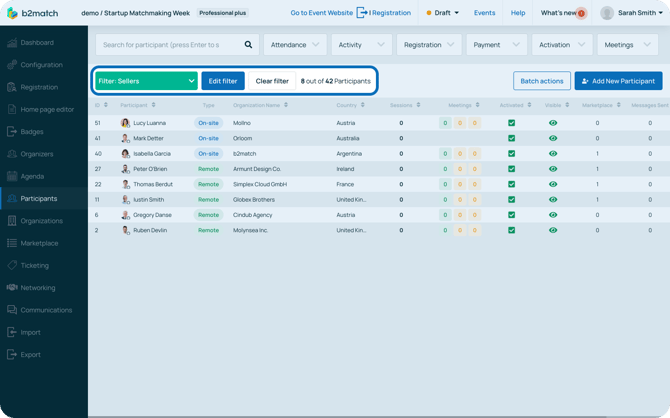
Click on the Batch actions button to open the Batch Actions modal.
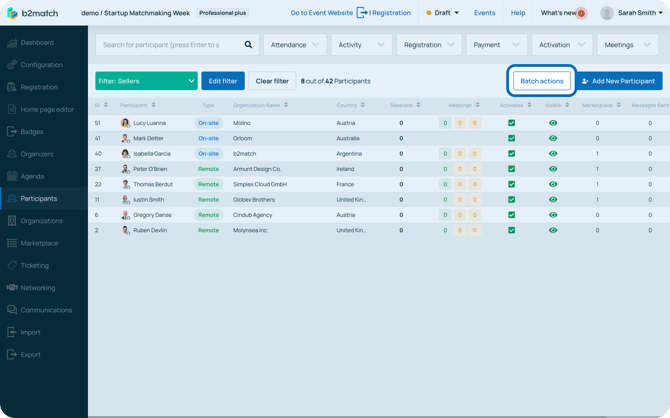
Within the modal, you can select the specific action you wish to apply to the selected participants.
After selecting the action, click on Continue to further configure the batch action.
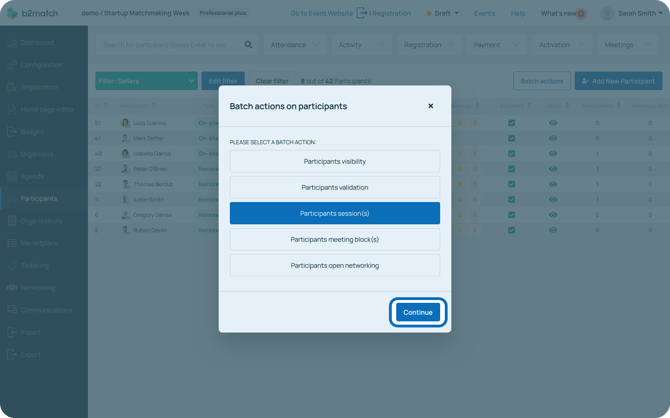
Note: If you do not apply any filters, any changes made will affect the entire participant list.
What can I do with batch actions?
In the Batch actions modal, you have several actions you can perform on a batch of participants.
Participants Visibility
This action enables you to swiftly set the visibility status for a batch of participants in the participant's list, making them either visible or hidden.
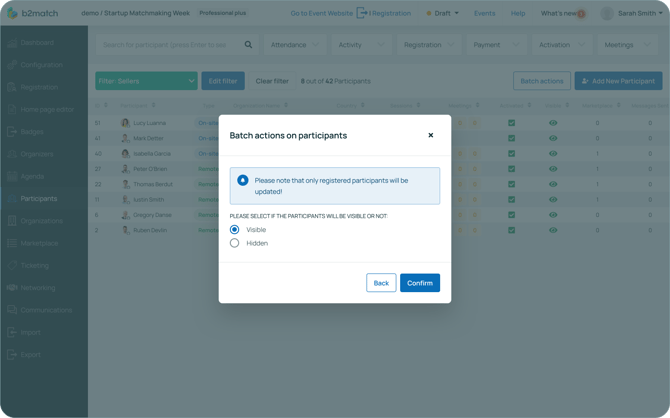
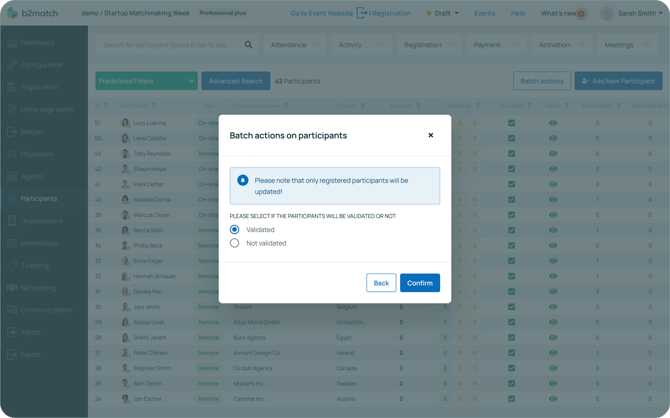
Participants Validation
This action allows you to set the validation status for a group of participants as either validated or not validated.
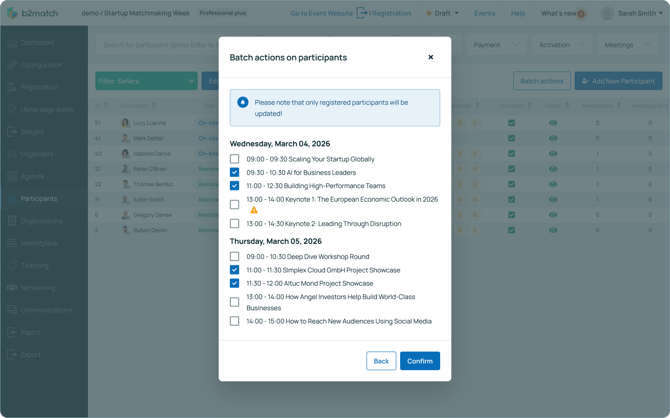
Participants Sessions
This action allows you to add multiple sessions to the schedules of a group of participants.
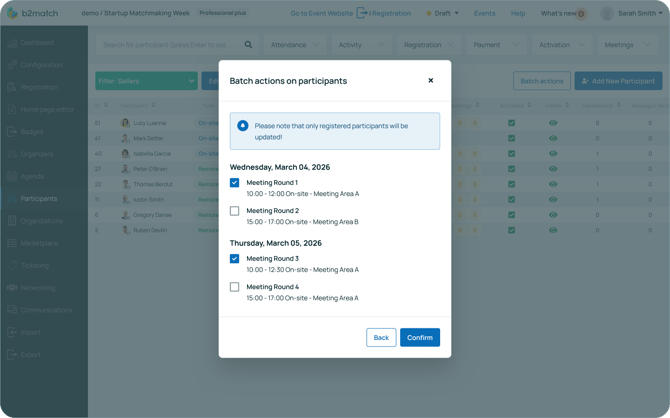
Participants Meeting Blocks
This action permits you to select the meeting blocks during which the participant can take part in meetings.
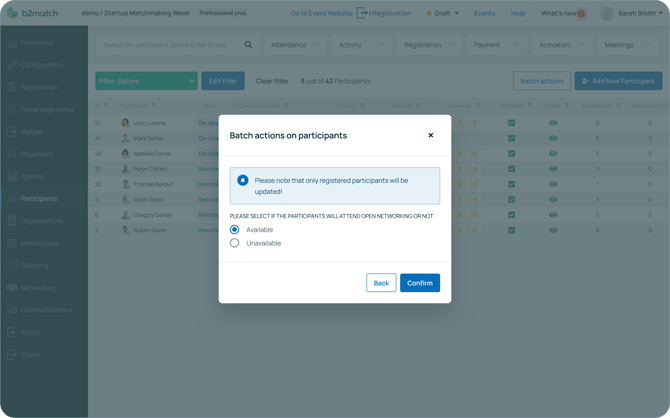
Participants open networking
This action allows you to allow the filtered participant group to be able to attend open virtual networking.
Once you have configured the desired batch action, click on Confirm. A modal will appear indicating that the participants are being updated. Afterward, click on Close and allow some time for the system to execute the action.
If you didn't find an answer to your questions, please get in touch with the Support Team here.