
b2match is 100% GDPR compliant.
The b2match default terms & conditions safeguards b2match as data processor, and the event organizer as data owner for the events handled with our platform.
Organizers who want to add additional, more specific event Terms and Conditions, can add them as mandatory custom fields in the registration form.
Where can I upload event specific terms & conditions?
Additional readable text of specific Terms & Conditions can be added either as a link or a PDF file to the b2match platform.
Event specific terms & conditions can be added to a new page in the home page editor. To make this page private, simply tick the Hide from the subnavigation checkbox.
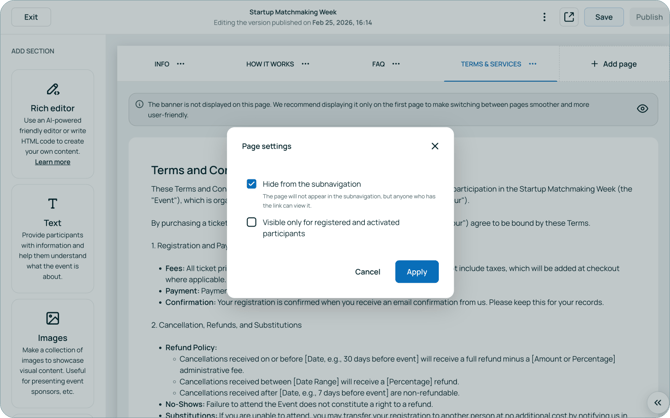
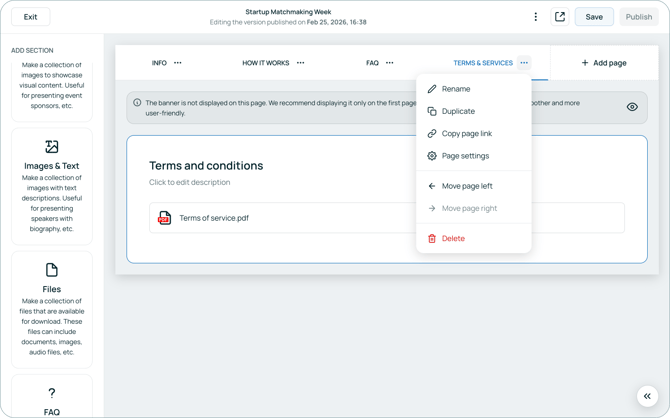
The PDF file can also be added to the Files section of the Home Page Editor. Once the file has been uploaded, you can get the page’s URL by clicking on Copy page link.
How can I add event specific terms & conditions to the registration form?
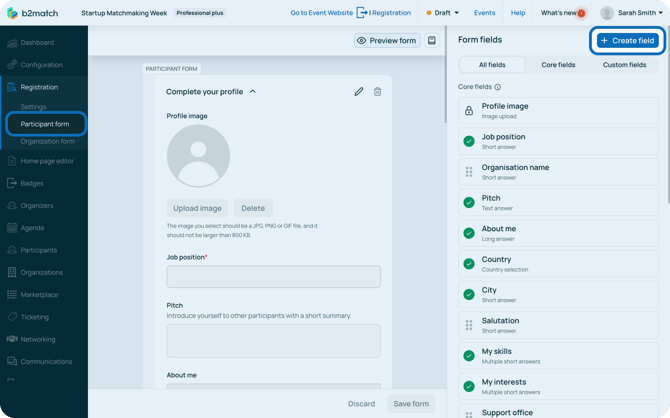
To add event specific terms & conditions to the registration form, first navigate to the Participant form in the Registration drop-down on the left sidebar. Here, click on Create field.
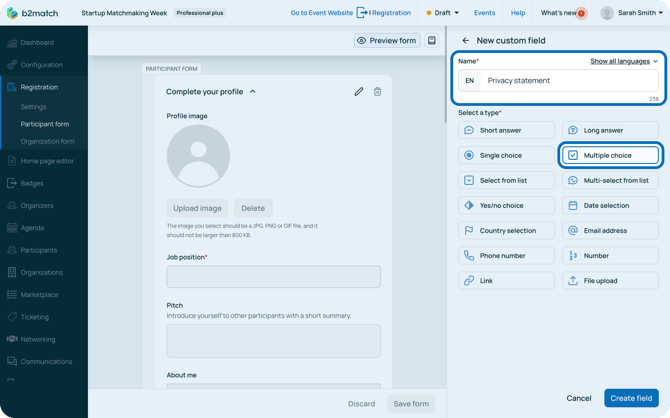
In the Name field, enter the title and select Multiple choice as field type. Then, click on the Create field button.
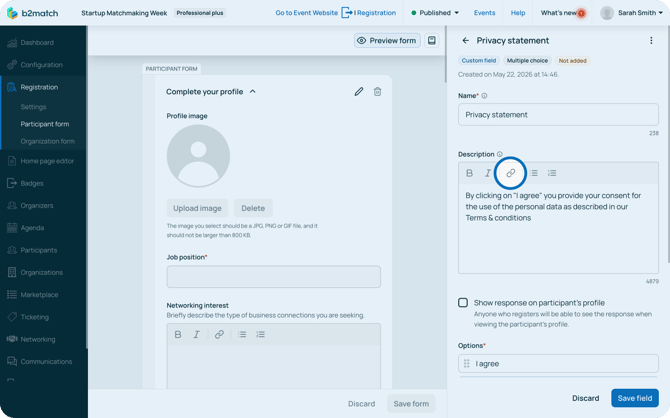
To reference the PDF file or the link to the page with the information, first click on the link icon in the Description field.
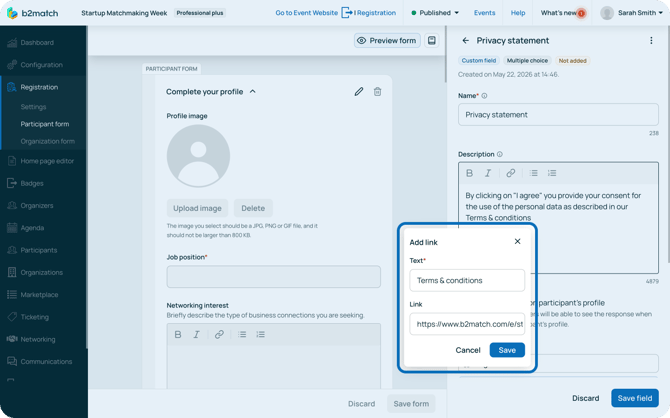
In the Text field, enter the words users will click. In the Link field, paste the link to your terms & conditions page or PDF file.
Remember to click on Save in the Add link modal.
In the Options section, leave only one field and name it “I agree” or similar.
Then, select for which participant types this question is visible and required for.
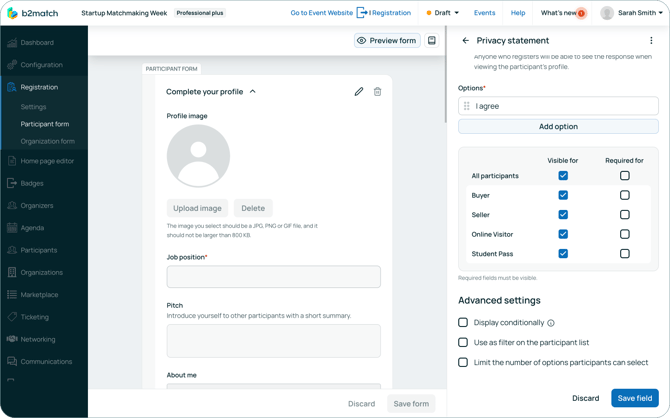
After you are done configuring the field, click on Save field.
To add the field to the registration form, first find it in the Custom fields tab.
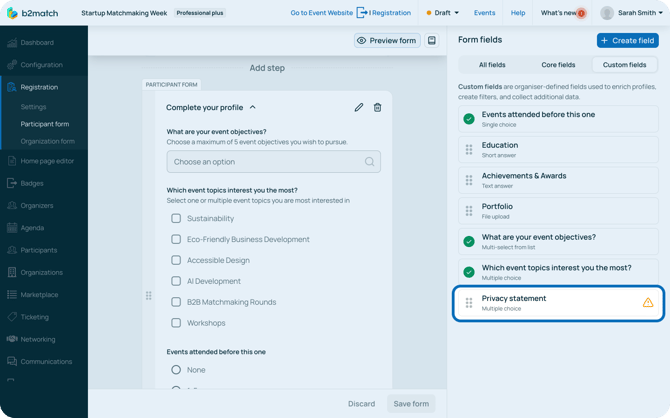
Next, simply drag the field and drop it to the desired place in the registration form.
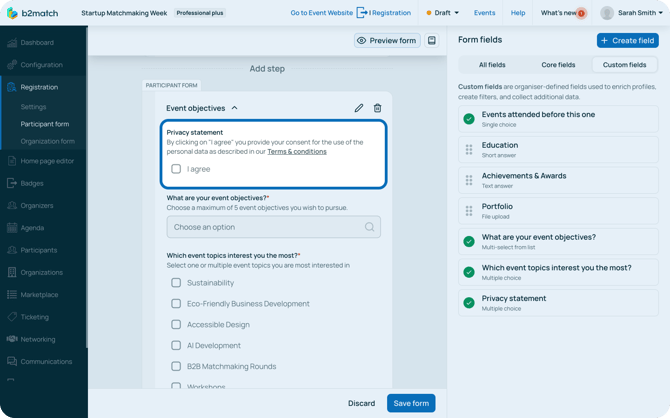
The preview will show the code in it's full length, however, it will be displayed as a hyperlink on the event website when participants register.
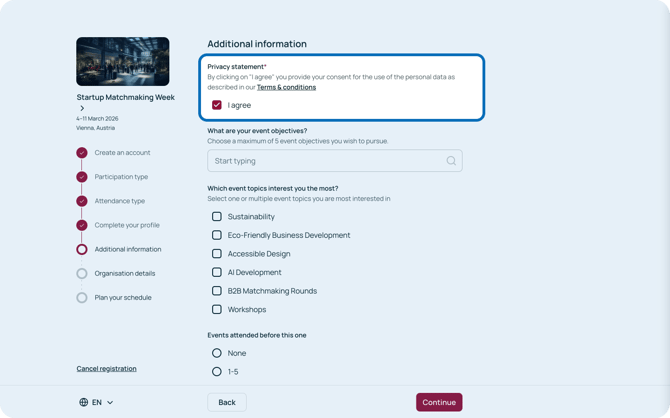
After making all necessary changes, click on Save form.
If you didn't find an answer to your questions, please get in touch with the Support Team here.