---
title: Printing Badges On-Site
description: Learn how you can streamline check-in by printing badges with AirPrint.
---
[Skip to content](https://support.b2match.com/printing-badges-on-site#main-content)
[](https://www.b2match.com/)
- [Log in](https://admin.b2match.com/cp/log-in)
Open main navigation
Close main navigation
- [Log in](https://admin.b2match.com/cp/log-in)
- [Contact us](http://www.b2match.com/contact-us)
[Contact us](http://www.b2match.com/contact-us)
How can we help you?
- There are no suggestions because the search field is empty.
1. [Help Center](https://support.b2match.com/?hsLang=en)
2. [Organizer Guide](https://support.b2match.com/organizer-guide?hsLang=en)
3. [In-Person Participant Management: Check-In App](https://support.b2match.com/organizer-guide?hsLang=en#in-person-participant-management-check-in-app)
# Printing Badges On-Site
Whether you're organizing a conference, trade show, or networking event, the ability to print badges directly at the venue can save you money on wasted pre-printed badges all while ensuring a seamless check-in experience for your participants.
After designing a badge in b2match's **[badge editor](https://support.b2match.com/working-with-the-badge-editor?hsLang=en)**, you can seamlessly print them with AirPrint as you check participants in at the venue.
Continue reading to discover how you can effortlessly print badges on-site using the [**b2match Entrance app**](https://support.b2match.com/en/understanding-b2match-entrance?hsLang=en).
### How can I set up AirPrint?
AirPrint is available **only on the iOS version** of the b2match Entrance app.
Note: Keep in mind that not all printers are compatible with AirPrint. **[Click here to see the list of printers which support AirPrint](https://support.apple.com/en-us/HT201311)**.
To pair the b2match Entrance app with the printer, tap on the ***settings icon*** in the **upper left corner** of the screen and tap ***Select or change printer***.
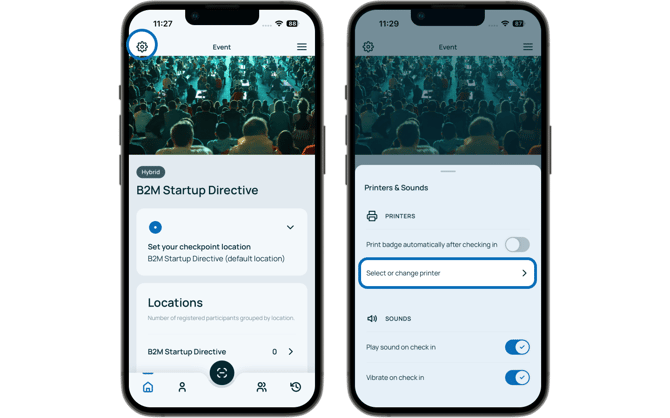
The app will search for available printers. Once the app scans for available printers, **tap** on ***Add an AirPrint printer***.
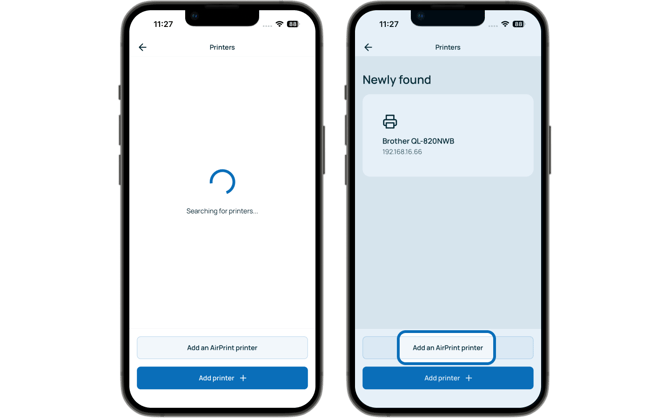
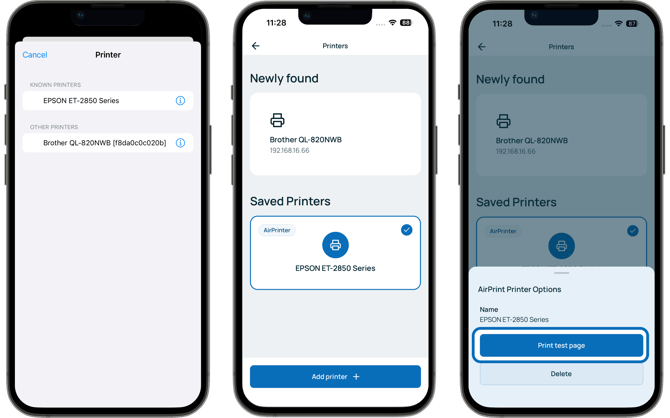
Next, **tap** on the **appropriate printer** from the list to save it on the list of printers and connect with the b2match Entrance app.
To print out a test page, simply tap the ***printer*** from the **Saved Printers list** and tap on ***Print test page***.
### How can I print the badges?
You have the option to print badges manually or set up automatic printing upon participant check-in.
#### Manually printing labels
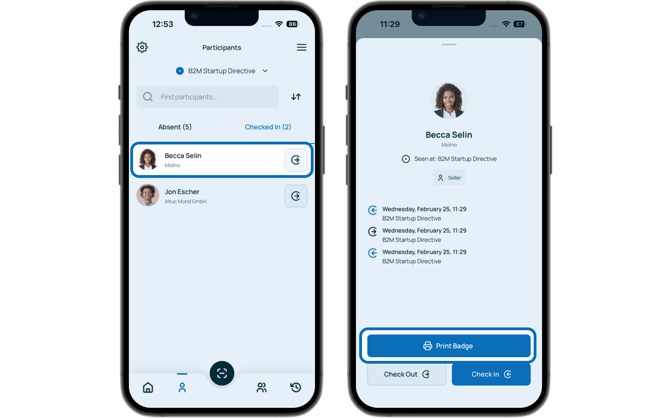
Open the **Entrance app** and access the participant list by tapping on the ***participant icon*** in the bottom bar.
Select the ***participant*** whose badge you wish to print and then tap on ***Print Badge***.
#### Automatically printing labels
To streamline the check-in and badge printing process, you can configure the app to automatically print badges immediately as participants check in.
First, tap on the ***settings icon*** located in the **upper left corner** of the screen.
In the **Printers section**, press the ***toggle switch*** next to **Print badge automatically after checking in**.
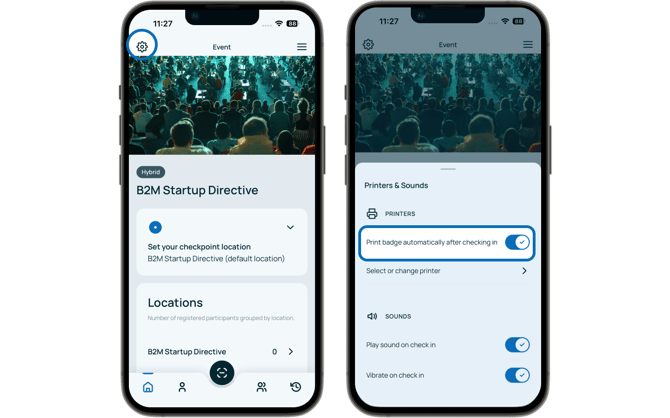
This will activate the automatic badge printing feature.
### How to configure the badges for AirPrint?
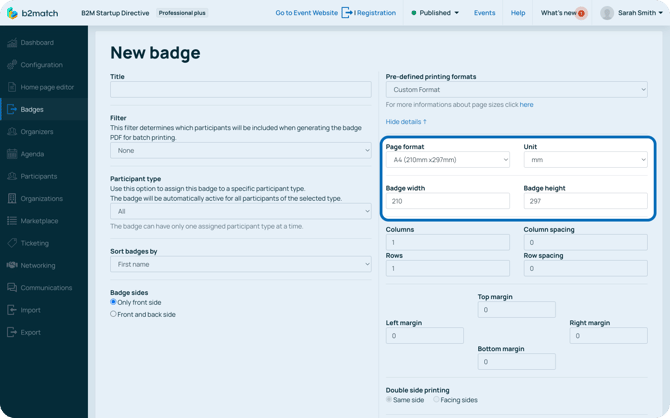
To ensure your badges print out in the best size make sure that the page format is set to A4 in the Badge Editor.
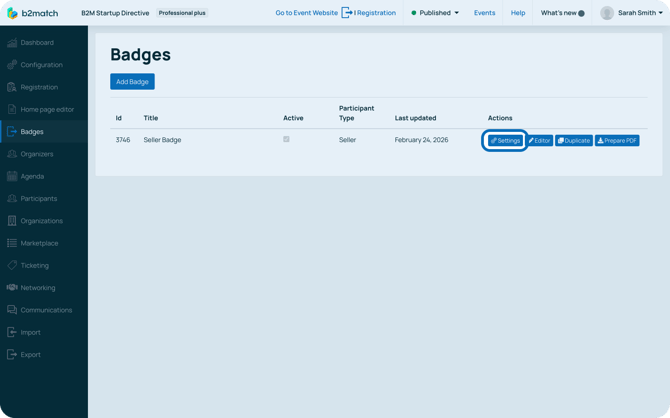
To do this, click on **Badges** on the left sidebar and find the Badge you wish to print.
Then, click on **Settings**.
In the Badge settings, make sure that the page format is A4 and the width is set to 210 and height to 297.
This ensures that the generated badge takes up the whole page.
Before printing, make sure that you **configure your printer** so it prints the badges in a smaller format, for example by scaling the print output to A6.
### What's the difference between badges and labels?
The Entrance app autogenerates printed labels, which can be printed using the Brother label printer QL-820NWB and Brother QL-829NWBC. Learn more about labels in our article **[Printing labels on-site](https://support.b2match.com/printing-labels-on-site?hsLang=en)**.
Labels include the participant's first and last names, organization name, and a QR code for check-in and cannot be customized.
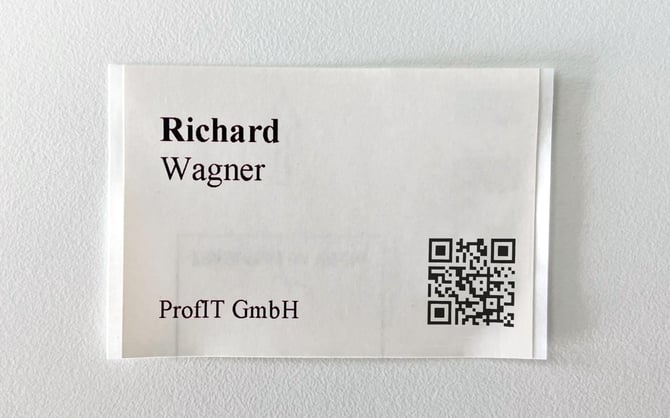
Once the label is printed, you can peel it off and stick it to a pre-prepared badge.
**Badges printed with AirPrint** can be customized in b2match's **[Badge Editor](https://support.b2match.com/working-with-the-badge-editor-1?hsLang=en)**.
*If you didn't find an answer to your questions, please get in touch with the Support Team* [***here***](https://www.b2match.com/contact-us/organizer-support?utm_source=knowledgebase&utm_medium=link&utm_campaign=&utm_content=knowledgebase_article)*.*
- [Organizer Guide](https://support.b2match.com/organizer-guide?hsLang=en#main-content)
- [Your Organizer Account](https://support.b2match.com/organizer-guide?hsLang=en#your-organizer-account)
- [Managing Organizers](https://support.b2match.com/organizer-guide?hsLang=en#managing-organizers)
- [Workspace Management](https://support.b2match.com/organizer-guide?hsLang=en#workspace-management)
- [Event Management](https://support.b2match.com/organizer-guide?hsLang=en#event-management)
- [Home Page Editor](https://support.b2match.com/organizer-guide?hsLang=en#home-page-editor)
- [Event Settings](https://support.b2match.com/organizer-guide?hsLang=en#event-settings)
- [Event Components](https://support.b2match.com/organizer-guide?hsLang=en#event-components)
- [Branding](https://support.b2match.com/organizer-guide?hsLang=en#branding)
- [Registration Settings](https://support.b2match.com/organizer-guide?hsLang=en#registration-settings)
- [Custom Questions](https://support.b2match.com/organizer-guide?hsLang=en#custom-questions)
- [Participant Types](https://support.b2match.com/organizer-guide?hsLang=en#participant-types)
- [Ticketing](https://support.b2match.com/organizer-guide?hsLang=en#ticketing)
- [Agenda: Sessions](https://support.b2match.com/organizer-guide?hsLang=en#agenda-sessions)
- [Agenda: Session Locations](https://support.b2match.com/organizer-guide?hsLang=en#agenda-session-locations)
- [Agenda: Tracks](https://support.b2match.com/organizer-guide?hsLang=en#agenda-tracks)
- [Agenda: Topics](https://support.b2match.com/organizer-guide?hsLang=en#agenda-topics)
- [Agenda: Live Streams](https://support.b2match.com/organizer-guide?hsLang=en#agenda-live-streams)
- [Participants: Managing participants](https://support.b2match.com/organizer-guide?hsLang=en#participants-managing-participants)
- [Participants: Participant Types](https://support.b2match.com/organizer-guide?hsLang=en#participants-participant-types)
- [Participants: Speakers](https://support.b2match.com/organizer-guide?hsLang=en#participants-speakers)
- [Organizations: Managing Organizations](https://support.b2match.com/organizer-guide?hsLang=en#organizations-managing-organizations)
- [Organizations: Organization Types](https://support.b2match.com/organizer-guide?hsLang=en#organizations-organization-types)
- [Organizations: Areas of Activity](https://support.b2match.com/organizer-guide?hsLang=en#organizations-areas-of-activity)
- [Organizations: Sponsors](https://support.b2match.com/organizer-guide?hsLang=en#organizations-sponsors)
- [Meetings](https://support.b2match.com/organizer-guide?hsLang=en#meetings)
- [Meetings: Settings](https://support.b2match.com/organizer-guide?hsLang=en#meetings-settings)
- [Meetings: Meeting Blocks](https://support.b2match.com/organizer-guide?hsLang=en#meetings-meeting-blocks)
- [Meetings: Meeting Locations](https://support.b2match.com/organizer-guide?hsLang=en#meetings-meeting-locations)
- [Marketplace](https://support.b2match.com/organizer-guide?hsLang=en#marketplace)
- [Emails & Notifications: Outbox Emails](https://support.b2match.com/organizer-guide?hsLang=en#emails-notifications-outbox-emails)
- [Emails & Notifications: Automated Email Notifications](https://support.b2match.com/organizer-guide?hsLang=en#emails-notifications-automated-email-notifications)
- [Emails & Notifications: Announcements](https://support.b2match.com/organizer-guide?hsLang=en#emails-notifications-announcements)
- [Advanced Search](https://support.b2match.com/organizer-guide?hsLang=en#advanced-search)
- [Data Import & Export](https://support.b2match.com/organizer-guide?hsLang=en#data-import-export)
- [In-Person Participant Management: Badges](https://support.b2match.com/organizer-guide?hsLang=en#in-person-participant-management-badges)
- [In-Person Participant Management: Check-In App](https://support.b2match.com/organizer-guide?hsLang=en#in-person-participant-management-check-in-app)
- [In-Person Participant Management: On-Site Support](https://support.b2match.com/organizer-guide?hsLang=en#in-person-participant-management-on-site-support)
- [Mobile Event App](https://support.b2match.com/organizer-guide?hsLang=en#mobile-event-app)
- [Community Management Platform](https://support.b2match.com/organizer-guide?hsLang=en#community-management-platform)
- [Registration Form](https://support.b2match.com/organizer-guide?hsLang=en#registration-form)
- [Participant Guide](https://support.b2match.com/participant-guide?hsLang=en#main-content)
- [Getting Started](https://support.b2match.com/participant-guide?hsLang=en#getting-started)
- [Account Settings](https://support.b2match.com/participant-guide?hsLang=en#account-settings)
- [Event Settings](https://support.b2match.com/participant-guide?hsLang=en#event-settings)
- [Profile](https://support.b2match.com/participant-guide?hsLang=en#profile)
- [Agenda](https://support.b2match.com/participant-guide?hsLang=en#agenda)
- [Networking: Meetings](https://support.b2match.com/participant-guide?hsLang=en#networking-meetings)
- [Networking: Conversations](https://support.b2match.com/participant-guide?hsLang=en#networking-conversations)
- [Marketplace](https://support.b2match.com/participant-guide?hsLang=en#marketplace)
- [Feedback](https://support.b2match.com/participant-guide?hsLang=en#feedback)
[](https://www.b2match.com)
Need more help? Contact us at support@b2match.com
[mailto:support@b2match.com](mailto:support@b2match.com)
Copyright © 2025, b2match GmbH