
When organizing an event, you often need to gather some specific, but essential information. Custom fields allow you to choose from multiple field types which suit different data needs and create a registration form that asks just the right questions.
In this article, we will go over all custom field types and how you can configure to best suit your needs.
How many types of custom fields are there?
There are 14 different types of custom fields.
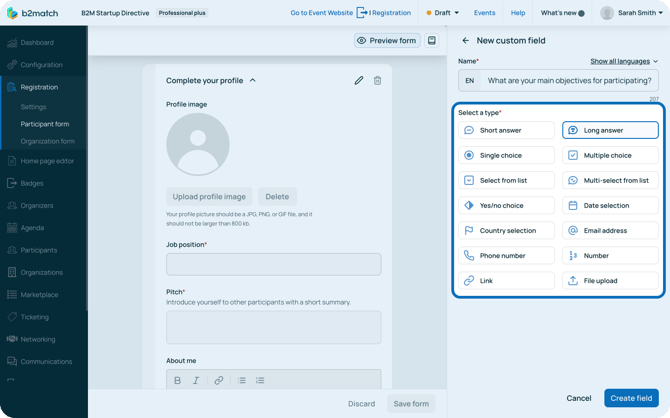
Learn more about how you can create custom fields in our article Creating & editing custom fields.
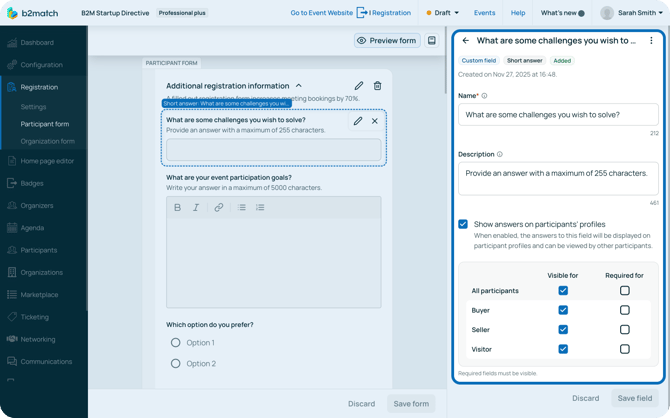
Short answer
The Short answer field allows your participants to type their response in a single line of text (maximum 255 characters).
You can edit this field by setting a name, description, and deciding if the answer should be shown on the participant’s profile.
Long answer
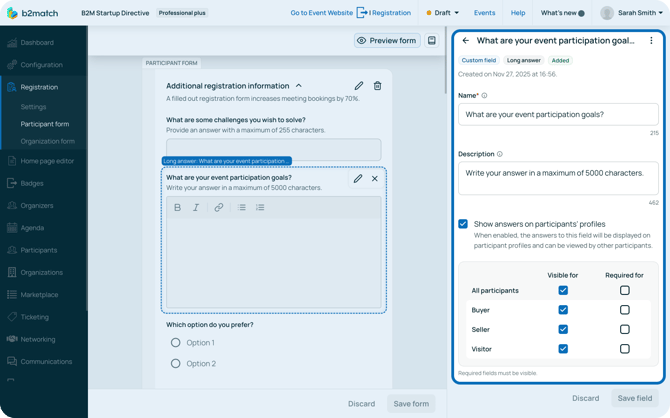
The Long answer field allows participants to provide a detailed response using multiple paragraphs (maximum 512 characters).
You can edit this field by setting a name, description, and deciding if the answer should be shown on the participant’s profile.
Single choice (Radio buttons)
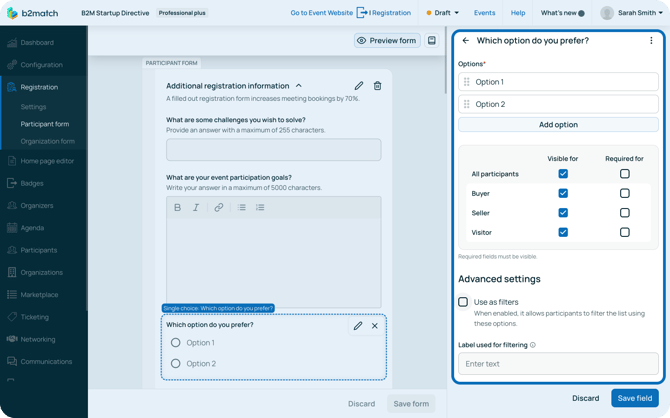
This field presents multiple predefined answers as radio buttons, where participants can select only one option.
You can edit this custom field by giving it a name, a description, and deciding if the answer should be shown on the participants’ profiles.
You can also edit the answer options and add new options to choose from.
You can also use this field as a filter on the participant/organization list. To do this, simply tick the Use as filter checkbox and enter the name of the filter to be shown on the list.
Multiple Choice (Checkboxes)
This field presents multiple predefined answers as checkboxes, allowing participants to select several options.
You can edit this custom field by giving it a name, a description, and deciding if the answer should be shown on the participants’ profiles.
You can also edit the answer options and add new options to choose from.
You can also use this field as a filter on the participant/organization list. To do this, simply tick the Use as filter checkbox and enter the name of the filter to be shown on the list.
You can further configure this field by limiting the minimum and maximum number of selected options.
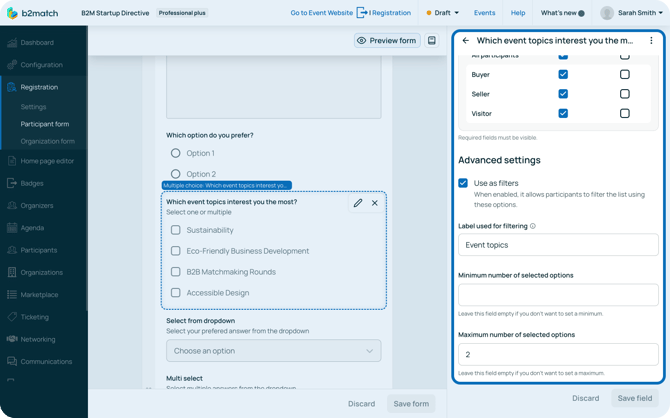
Select from list
This type allows participants to choose one single option from a drop-down menu on the event website.
You can edit this custom field by giving it a name, a description, and deciding if the answer should be shown on the participants’ profiles.
You can also edit the options and add new options to choose from.
You can also use this field as a filter on the participant/organization list. To do this, simply tick the Use as filter checkbox and enter the name of the filter to be shown on the list.
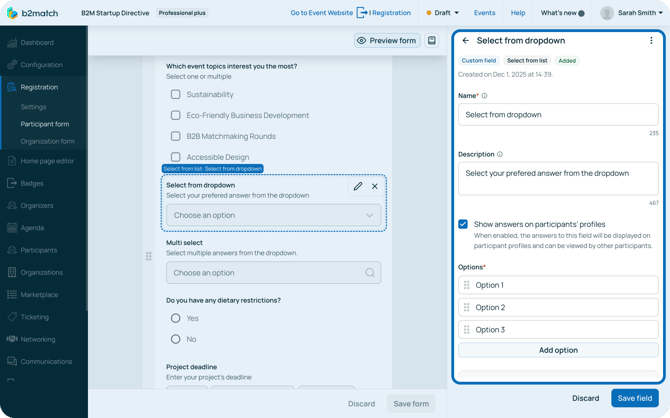
Multi-select from list
This type allows participants to choose several options from a drop-down menu on the event website.
You can edit this custom field by giving it a name, a description, and deciding if the answer should be shown on the participants’ profiles.
You can also edit the options and add new options to choose from.
You can also use this field as a filter on the participant/organization list. To do this, simply tick the Use as filter checkbox and enter the name of the filter to be shown on the list.
You can further configure this field by limiting the minimum and maximum number of selected options.
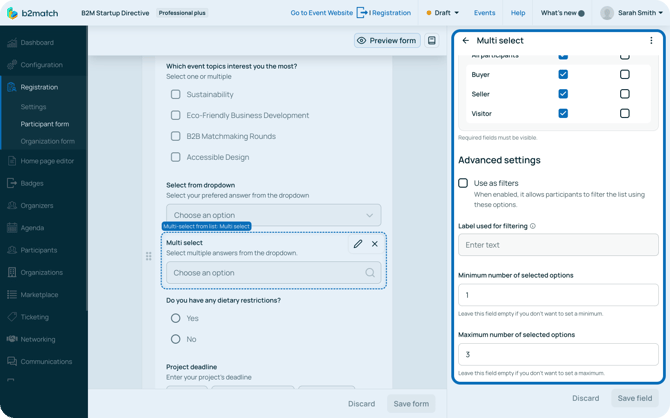
Yes/no choice
This custom field type allows participants to choose one either Yes or No as an answer.
This choice will be displayed as radio buttons on the event website.
You can edit this custom field by giving it a name, a description, and deciding if the answer should be shown on the participants’ profiles.
You can also use this field as a filter on the participant/organization list. To do this, simply tick the Use as filter checkbox and enter the name of the filter to be shown on the list.
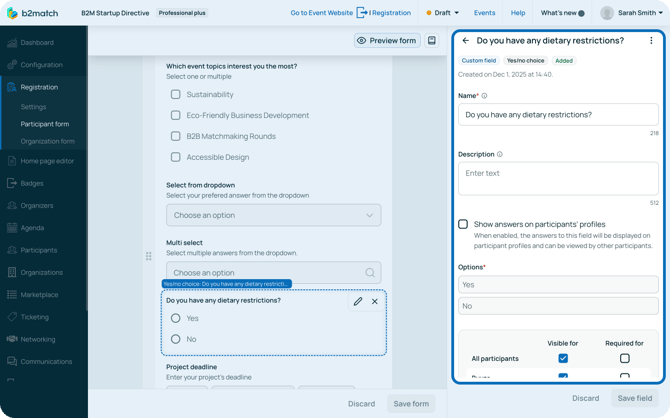
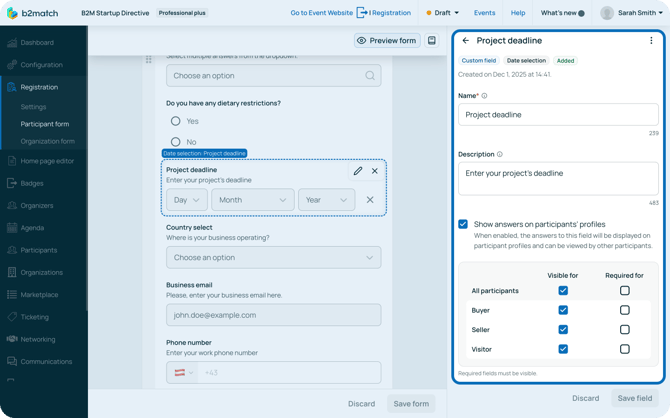
Date selection
This type allows participants to choose a specific date as an answer.
You can edit this custom field by giving it a name, a description, and deciding if the answer should be shown on the participants’ profiles.
Country selection
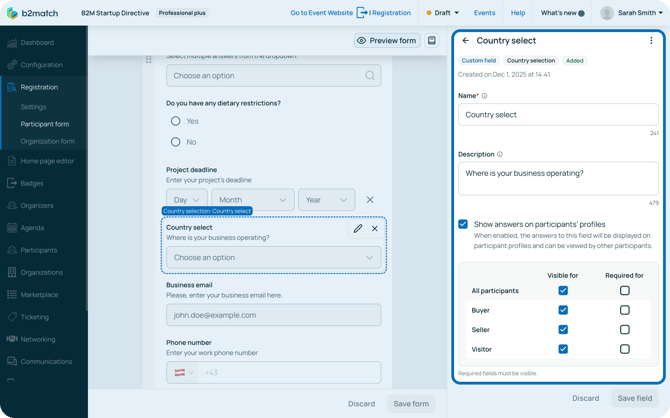
This custom field type allows your attendees to select a country as an answer.
The countries will be displayed in a drop-down menu on the event website.
You can edit this custom field by giving it a name, a description, and deciding if the answer should be shown on the participants’ profiles.
You can also use this field as a filter on the participant/organization list. To do this, simply tick the Use as filter checkbox and enter the name of the filter to be shown on the list.
Email address
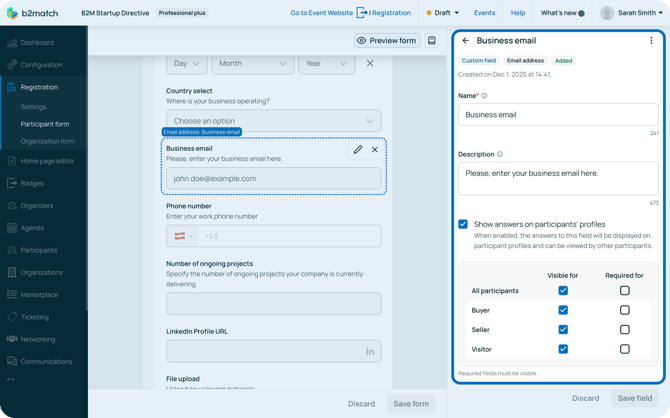
This type allows participants to enter a valid email address as an answer.
You can edit this custom field by giving it a name, a description, and deciding if the answer should be shown on the participants’ profiles.
Phone number
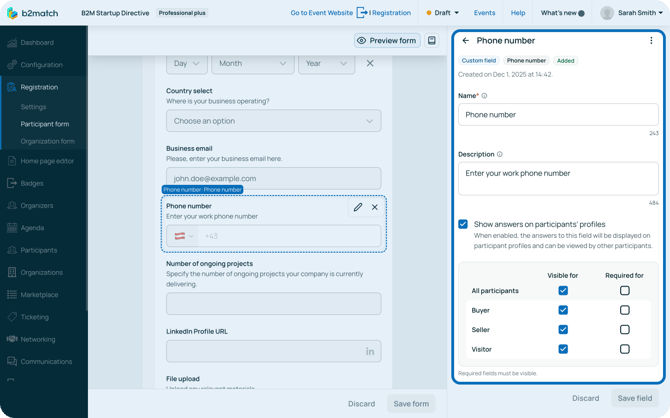
This type allows participants to enter a phone number as an answer.
You can edit this custom field by giving it a name, a description, and deciding if the answer should be shown on the participants’ profiles.
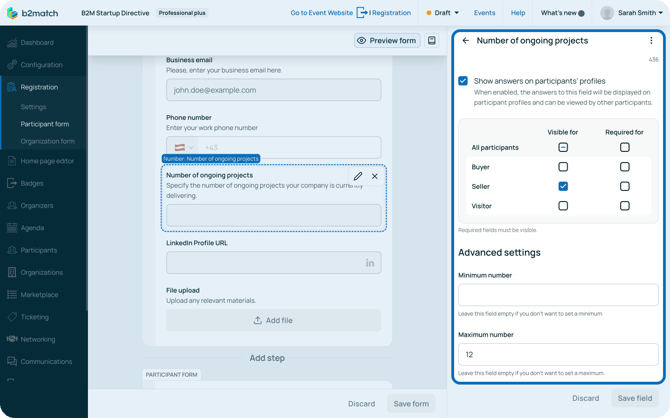
Number
This type allows participants to enter a number as an answer.
You can edit this custom field by giving it a name, a description, and deciding if the answer should be shown on the participants’ profiles.
You can further edit this field by setting the minimum number and maximum number. If you do not wish to limit, leave these fields blank.
Link
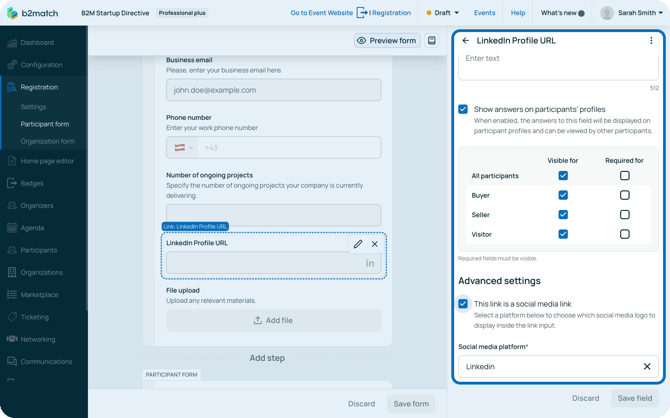
This type allows participants to enter a website link as an answer.
You can edit this custom field by giving it a name, a description, and deciding if the answer should be shown on the participants’ profiles.
If the link is a social media link, you can tick the This link is a social media link checkbox and choose if it is a Facebook, Instagram, LinkedIn or X link.
File Upload
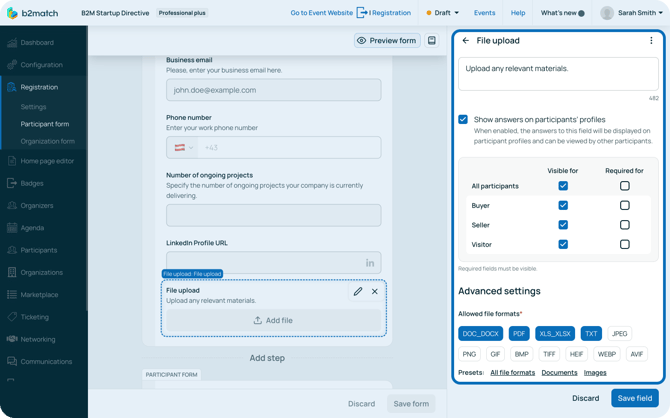
This type of custom field allows your participants to upload documents. The file's maximum size is 10 MB, and acceptable formats include various Microsoft Office formats, PDFs, and image formats.
You can select allowed formats either by using a preset (All file formats, Documents, or Images) or by manually selecting each individual allowed format.
The participants will see the Upload File button on the event website. By clicking on it, they can easily upload a file to the platform.
If you didn't find an answer to your questions, please get in touch with the Support Team here.