
The registration process is one of the initial stages of your event. Because of this, it is important to have a tool that allows you to customize it to suit your needs without overwhelming you with complicated systems.
In this article, we will help you understand the registration form builder and how you can use it to create a straightforward registration process for your event.
Where can I access the registration form builder?
To access the registration form builder, simply click on Registration on the left sidebar.
This will open the Registration drop-down.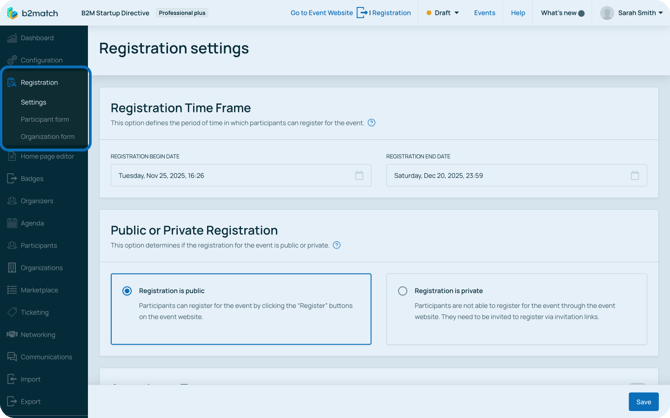
The drop-down shows you registration settings, participant form, and organization form.
In registration settings you can configure specific registration settings like registration time frame, public or private registration type, participant visibility, configuring attendance type, and limiting on-site spots.
The participant form allows you to create & edit the registration form for participants, which will gather their information.
The organization form allows you to create & edit the registration form for organizations, which will gather the organization's information.
What does the registration form builder look like?
Both the participant form and organization form, although serving different purposes, are easy to use, and work on the same principle.
The main content area
The main content area provides a real-time preview of how your registration form will appear on the event website. This preview showcases the layout, structure and content (i.e., the fields) of the form. 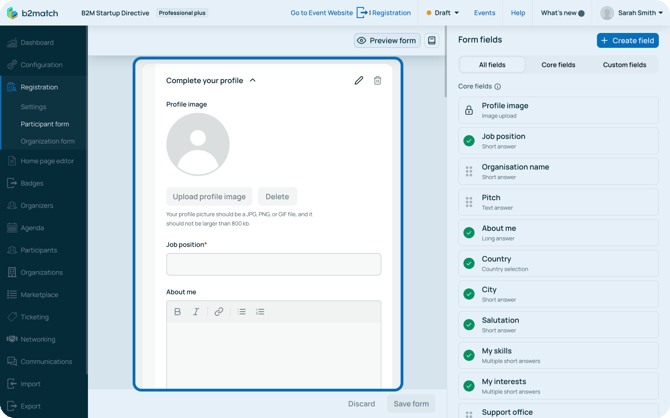
In the main content area, you manage the form’s content. Learn more about this topic in our articles Editing participant registration form and Editing organization registration form.
From the main content area, you can also preview the registration to see how the registration process would look like for different participant types.
Form fields
The form fields are shown on the right sidebar and are divided into 3 tabs: All fields, Core fields, and Custom fields.
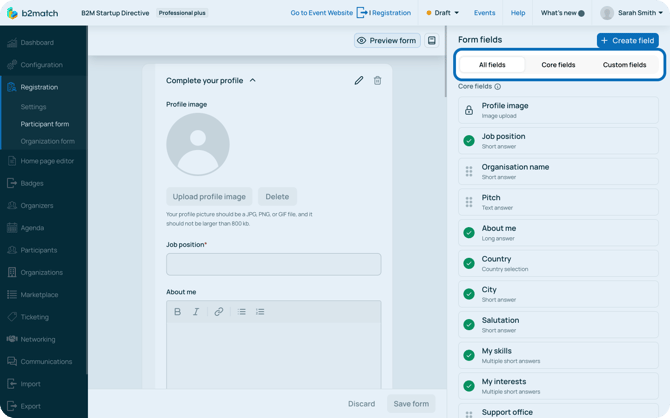
All fields lists you all created fields that can be added to the registration form. You can add them to the registration form by dragging and dropping them to the desired place.
Core fields are system-defined fields that are most commonly used. These include profile picture, job position, organization name, pitch, biography, country, city, contact information, and more.
Custom fields are the flexible fields you create for your own purposes and can add to the registration form. Learn more about custom fields in our article Creating & editing custom fields.
Multilingual registration form
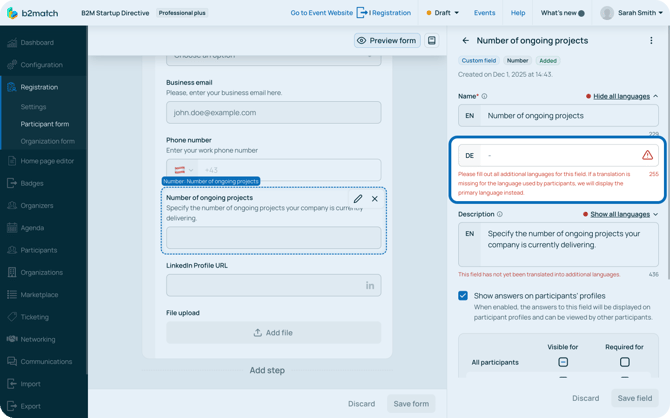
If your event is configured to be multilingual, the registration form builder allows you to create the form in multiple languages. This feature is crucial if you want to cater to attendees who speak different languages.
The core fields of the form builder are already configured in all languages which we offer, however when you create a new custom field, you need to translate the content in all languages.
If you didn't find an answer to your questions, please get in touch with the Support Team here.